

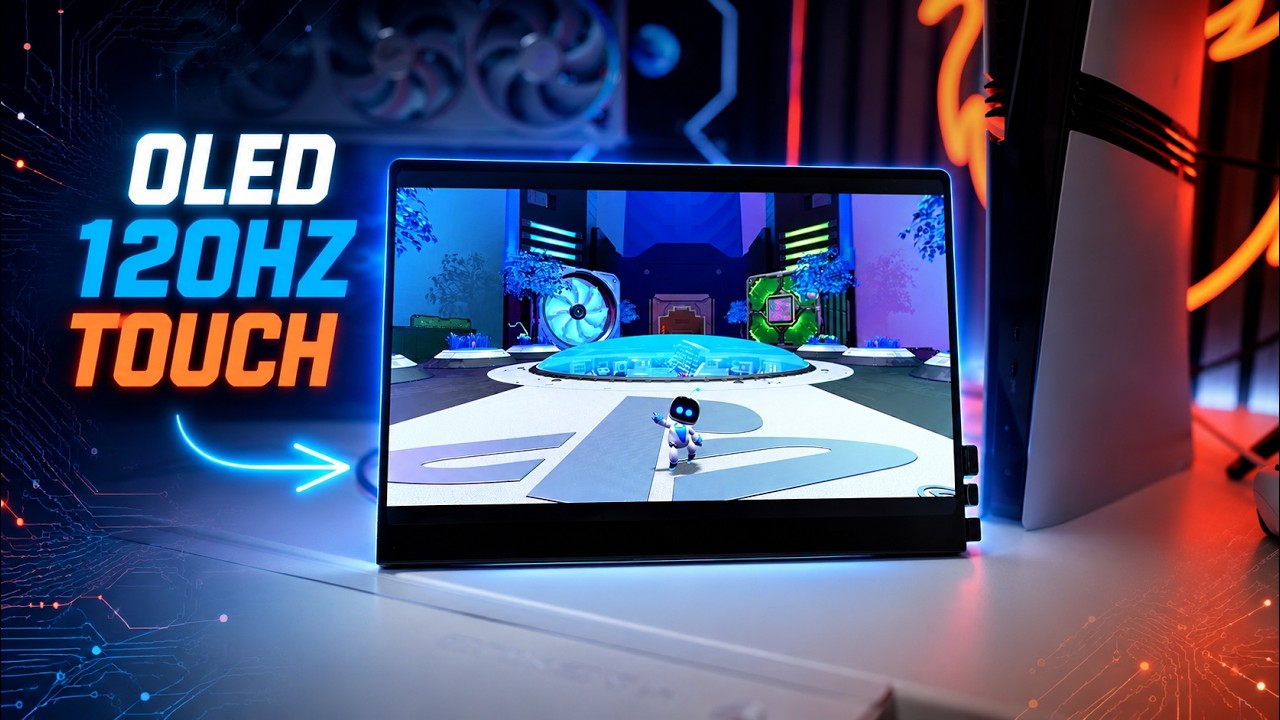
UPERFECT has done it again. We now have a brand new 14-inch portable monitor with a gorgeous 3K OLED display, a smooth 120 hertz refresh rate, and a responsive 10-point touchscreen, making this one of the most feature-packed portable monitors in UPERFECT’s Blaze gaming lineup. This is the UPERFECT GR14BU and it's also their first portable OLED monitor to feature a built-in. kickstand while the other three older OLED monitors needed a foldable cover, but on this monitor, the kickstand is also their latest version, which is now even smaller and sleeker.
Display Specifications

You're also getting a 2080 by 1800 resolution with a 16 by 10 aspect ratio, which puts the pixel density at a razor sharp 242 pixels per inch. That's actually sharper than a 27-inch 4K monitor and. Not far off from the MacBook Pro's XDR display. Now, since this is OLED, you get true blacks near infinite contrast, and rich, vibrant colors that straight up destroy any portable IPS monitor, and the glossy coating makes everything pop even more.
Pricing and Sponsorship

Now, this UPERFECT GR14BU retails for about $630 but it's currently going for around $400 and as always, you can stack my special discount code on top of their current sales price for maximum savings. I'll link everything down below. Huge thanks to UPERFECT for sending this monitor out and sponsoring this video so I can showcase to you guys. All right guys, go ahead and unbox this brand-new OLED portable monitor.
Unboxing

So, it's gonna come in this really nice and sleek white box. So I'm really excited to see how this monitor is gonna look. You can see it's nice and protected here. All right guys, there we have the. 14-inch OLED monitor and my first impression that it is really nice and slim, doesn't weigh that much, about 1.3 pounds, I believe. Take this. Plastic protector out of the way.
First Impression and Design

I'm immediately noticing the actual screen is integrated into the framing of this body and it looks just like a tablet in a sense, right? Like think of an iPad where it's all glass on the front, and you can see the reflection of, of everywhere, so this does have a glossy display. I really love that integrated and seamless display. So, let's see what else we get in the box.
Mounting and Power Adapter Included with Cables

We're gonna have a user manual. Alright, for cables, we're getting two USB-C to C cables, which will support power delivery, video. And audio, which is awesome. We're also gonna get a USB A to C cable, and finally, a mini HDMI to full-size HDMI. So we definitely get a great selection of cables.
Now, further inside the box, we're also gonna get some Visa mount screws, and these are M4 by 4 millimeters, so this should be directly compatible for the Visa mount on the back of this portable monitor. And as you can see, we have two Visa mount screw holes there that you can attach to any type of universal visa mount, whether that be a monitor arm or a Visa mount stand. And the last thing we're gonna get. Is this USB-C power adapter.
Gaming Experience

Gaming Performance
So, what's it like gaming on this UPERFECT GR14BU OLED? Well, for a portable monitor, this is the best gaming experience you can get out of a 14-inch display. OLED just makes the colors look incredible with the deep and creamy blacks you'd expect from this type of display. Even though UPERFECT has other OLED monitors at 4K, those are locked to just a max of 60 Hz.
3K Resolution and 120Hz
So, for gaming, the 3. K resolution sits a little bit higher than 1,440p but it's also less demanding than 4K while giving you double the refresh rate at 120 Hz. Now, I think 120 Hz is more than enough, but if you need a faster refresh rate, the UPERFECT does have other gaming LCD monitors that can go up to 240 Hz. But since those are LCD you'll have a slower response time versus the almost instant response you get with OLED. So, I think this is the clear. Winner.
Refresh Rate Limitations
Now, keep in mind that the max refresh rate of 120 Hz at the max 3K resolution only works through USB-C. So, if you're using HDMI you'll be locked at 100 Hz, which is fine, but you could also go down to 2560 by 1600 to unlocked at 120 Hz over HDMI. Now for next generation gaming consoles like the PlayStation 5, you'll be able to output in 1,440p and it will support both. 60 and 120 hertz gaming and also HDR which is awesome.
VRR and Console Aspect Ratio
Now, keep in mind there is no free sync built into this portable monitor, so it's not going to support VRR. Also, keep in mind that the aspect ratio of consoles is currently limited to 16 by 9, so you'll see black borders on the top or bottom, which is honestly way less intrusive because of the perfect blacks of OLED. The speakers on this also sound decently OK.
Connectivity & Design

Overall Design
All right, with that out of the way, let's go ahead and take a closer look at the design of this. Brand new OLED monitor. So starting off with the left side, we're gonna have many buttons over here, and if you take a look at the back here, you'll get an image of what each one of these do. So you have a dedicated power button, you can scroll through the menu, up and down, and even back, and these buttons have like a really nice chrome design to it.
Ports and Inputs
And then on the right side of this monitor, we have all of our inputs here, which includes two USB-C ports and a mini HDMI port. So there's definitely a lot of versatility in connecting this monitor with a whole bunch of different devices, which is awesome. Now, one standout feature of this portable monitor that's new. And different from all the other UPERFECT monitors, it has to do with the kick stand here.
New Built-In Kickstand
On previous portable monitors, the kick stand was kind of integrated into the frame, so you have to pull the whole thing out, but now they made it so sleek, it's literally this section over here. You just have to pull this out and this kick stand basically comes right off. It has a lot of resistance here, so it should support this, the weight of this monitor, which is barely anything, but you can easily put this horizontally and also be able to. Have extreme amount of angles.
Kickstand and Premium Build
Now, this is the most extreme that you can have it, but I gotta say, I really love this new built-in kick stand. I mean, it is very, very sleek, literally makes it look much more premium, so I really appreciate that. Now I'm talking about premium, the actual portal monitor feels really nice, has like a nice aluminum framing here.
Clean Front Design
It's all black, which I absolutely love. And another thing I really love about UP monitors is that when we take a look at the front. There are no logos up in the front here, and this is awesome because there are other monitors out there that might slap their logo right over here and that could be a little bit obnoxious, but the fact that this is super clean, there's no mention of UPERFECT at all, I absolutely love that.
Speakers and Bottom Design

I'll let you guys listen. Nothing crazy, but still great to have just in case. And I actually do like the fact that the speakers are pointing downwards. It kinda gives you a little bit of a punchier base, if that makes any sense versus having the speakers on the back of the monitor.
Now, right on the bottom here is where we have our cutouts for the speakers, so they are firing downward here, so I'm not sure how that's gonna work, but I'm assuming that with the kick stand open. you still have some space. The actual bottom of the monitor is still lifted in a sense, so it's gonna basically bounce on the bottom.
Touchscreen Performance

Touchscreen Setup
Now, since one of the standoff features of this monitor is that 10-point touchscreen, I'm gonna show you guys exactly how to use it. All right guys, once you have your monitor connected directly to your laptop or your desktop PC, you might come into a scenario where if you touch the actual touchscreen on the monitor. Itself, the actual screen is not registering the touch screen. Instead, it is going to your main display, whether that be your laptop screen or your main monitor, for example.
Touchscreen Registration Issue
And so, as you can see here, if I drag my fingers here, you can see that it is basically scrolling as I'm touching the display. You may or may not come across this in the case of my Auris gaming laptop, the moment I connected my. portable monitor, it automatically knew that this was the right one, so the touchscreen registered correctly on the screen. But in case you have that scenario where it doesn't, you basically have to tell Windows which display actually has the touchscreen functionality.
Windows Tablet PC Settings
And so, in order to do that, you have to go to control panel, and once you're in control panel, you wanna go ahead and click on hardware and sound. And then under hardware and sound, you go to tablet PC settings. And then you're gonna go ahead and click set up. It's gonna basically give you this white screen with some letterings, but that lettering only shows up on one of the screens.
Identifying the Touchscreen
It's not gonna show up on all the screens. So let's say you have multiple monitors, you will only see this black lettering on one display at a, at a time, and it basically says, tap the screen with a single finger to identify it as a touch screen. Now, if I touch this monitor. Right now, then it will automatically register this screen.
Switching Between Displays
If this is not a tablet PC screen, press enter. So, all you have to do is click enter and those instructions now move to the next display. So, if you have multiple displays, you just click on enter until you see the black lettering on your actual OLED portal monitor.
Using the Touchscreen
And so now, I can go ahead and touch this, and so now when I touch the screen on my actual monitor, I can easily navigate. Just like an external display and have the full touchscreen being registered and you can see it does offer pinch of zoom as well and different gestures here like 3 fingers, you know, all that good stuff. I can minimize and I can use this exactly how it's meant to be.
Successful Touchscreen Setup
And all of that is done under the control panel, tablet PC settings, just in case the touchscreen is not calibrated correctly, and as you can see, now we have it, successful. All right, now I wanna go over all of the menu settings you have on this portable monitor.
Brightness and Display Menu

So, in order for you to jump into the actual menu button, that's gonna be this button right here, the 2nd 1. The first option you're gonna see is brightness. When you click on the menu key again, it'll go inside that menu, and then you can use the bottom two buttons to then go down and up.
Picture Settings
And then you can click on the menu button again to enter and adjust whichever setting you want. You can see here, you have the ability to adjust the brightness, black levels, contrast, change the eco mode. And whenever I wanna go back, the last button here will go back, and then we're gonna go ahead and go to the next option.
Aspect Ratio and Color Temperature
Next option here is the aspect ratio. It is set to automatic, but you can also change that if you want. Wanted to. Next option is color temperature. You can change the color temperature to cooler, warm, or have your own custom settings there.
OSD Settings and HDR
The next option here is the OSD settings. So, it's basically the screen over here. You can have it pretty much lasts a little bit longer or the transparency of it and even the positioning of it, which is really nice. After that, we have the reset button here so you can reset the settings, and then you also have HDR mode, so by default, it is set to off, but you can turn it on at any time.
Miscellaneous Settings

And then finally, you have your miscellaneous option. You have signal source set to auto, but you could also manually change that. You have low blue light settings here if you wanna increase it for less low blue light, and you can also adjust the volume, and also the 3rd and 4th button are shortcuts for both volume and brightness.
So, this button here, which the images are right in the back, you can click on this to easily jump into the volume settings, or the 4th button to easily jump into the brightness settings. This makes it very quick to make those. Adjustments. So, is the UPERFECT GR14BU worth getting?
Final Verdict

Well, if you're looking for a portable monitor that combines a sharp 3K OLED display, a 120 Hz refresh rate, and a responsive touchscreen, then this is one of the very few options that gives you all three in one package. You're getting gorgeous true blacks, amazing colors, a razor sharp display that's perfect for laptop users, and a glossy panel that makes everything pop, the built-in stand, aluminum build, and lightweight design. Make it super easy to take anywhere.
This is also perfect if you're someone who already has an OLED main monitor or OLED laptop, or maybe you have a really good mini LED display like the MacBook Pro's XDR display and want an additional screen that closely matches the quality of your main screen. I know for me, it's worth spending more on OLED over IPS because it is a world of a difference. But if the price is still out of reach, UPERFECT has many other portable monitors. To choose from. I highly recommend the UPERFECT GR14BU if you want a premium portable display that nails both productivity and gaming on the go.
Share:
UPERFECT GR19BU (UColor 19 Apex) UHD Gaming Monitor reviewed by PC Crazy
UPERFECT GR14BU Portable OLED Gaming Monitor Reviewed by Joseph K Morris