

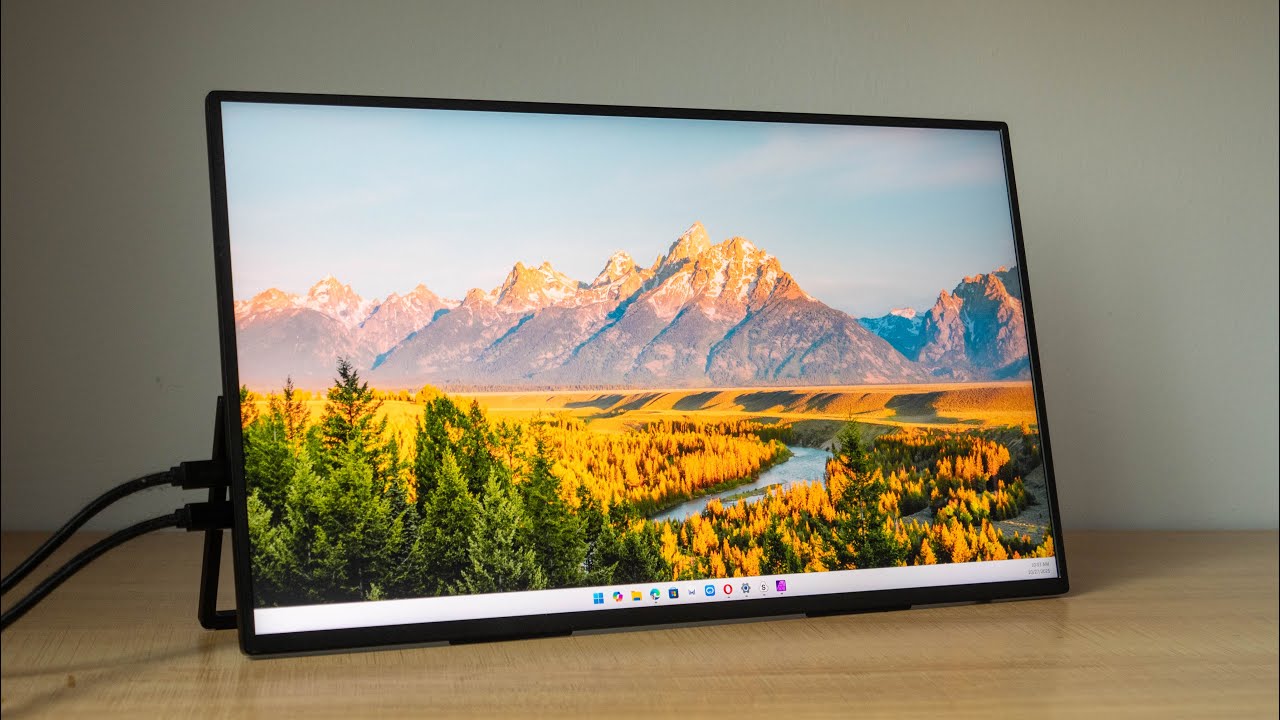
Hey, Roger here. Today I'm reviewing the UPERFECT GR19BU (UColor Apex) portable monitor with 4K UHD resolution and 144 Hz refresh rate. First of all, disclaimer, this is a review unit provided by UPERFECT, and I have actually reviewed many of their portable monitors in the past. So in this video, I'm just going to present to you my findings so that you can decide whether this is worth the money. And I was told that this is going to be selling at $429 US dollars.

Display Quality & Core Specs
As usual, let me give you the bottom line upfront, the color quality of this display is good, by the way, this is not a touch screen. So, I measured color support for 100% SRGB, 87% NTSC, 89% ODB RGB and 100% P3. And I recorded a maximum brightness of 379 knits, which is not too far from the advertised 400 knits. So, this is a bright vibrant. Bright and sharp display. Video connections supported are USB-C and HDMI. It's possible to power this display with one single USB-C video connection, but you will not get maximum brightness. So, to achieve maximum brightness, you have to connect additional power to the display.

Size Consideration & Overall Impression
Now, one main downside or limitation with this display is, I don't find the 19 inches to be significantly bigger compared to a 16-inch laptop. So, if you want something even bigger, you can consider harder, larger portable displays from UPERFECT. But if you want something portable, then 19 inch is an option to consider. I don't actually have many negative things to say about this display. It looks good and works well.


Box Contents & Accessories
Right on to the full review, let's take a look at the items included with the purchase. This is the packaging box. In the box, you will find 4 screws for the base mount behind the user manual. This is a 30-watt power adapter with USB-C port. You may be able to choose the plug on the ordering page and this is interchangeable. For the cables, there is a 1 m long micro. HDMI to full size HDMI cable, and 2 1.2 m long USB-C to USB-C video cables. And lastly, there is this U shape USB-C to USB-C adapter and a micro-HDMI to micro-HDMI adapter. These two are for cable management. You can find such adapters on AliExpress and it's not too expensive. So, when you use this, you can have the cable go behind. The display rather than have it come out like this, which does not look as good.

Stand Options & Setup
For the review unit that I have received, the company has also provided me with this visa stand. This is called the UPERFECT U stand and the price is $69 US dollars. Now, if you find it's too expensive, you can actually just buy any generic tablet stand on AliExpress or Amazon. So, this one that I have here is probably less than $15 US dollars, and you can put the display here. OK, so since I have this, I might as well show you how this works. This is the bottom of the stand and there is this LNP here, and this is foam. The grip is good on the table, but it's not as grippy compared to rubber feet. The hinge is quite stiff, so that's good. And this is the part where you can fold up. Set up is pretty straightforward, just remove this first, put it here, and then push this into the bow head, and then tighten the plate. Behind And now you can fix the monitor onto this metal plate. The back of the display has this cake stand and you can fold this all the way up here. And now let's screw this onto the back. No screwdriver is included, so you will have to use your own.


Ergonomics & Adjustments
The main advantage of having a stand is so that you can elevate the display to a more ergonomic height. And this stand is actually much taller compared to this tablet stand. That I have. Let's look at the back. OK, you can rotate the bottom here. So, this then has adjustment for height, tilt, rotate and swivel. And this is how the back looks. Now if the hinge is not strong enough or not tight enough, you can use the Allen key to tighten here, here or here. When you rotate, it is this part here that moves, not the whole base. And this is metal. Alright, let's see how low this can go. So let me just bend it this way. Now you can actually bend the stand like this or like this. So, let's go this way. And if it goes low, the balance will be off, so you have to adjust to make sure the center of gravity is on top of the circular plate. And if the display weighs down on the hinge, you may have to tighten the hinge. OK, I think this is about as low as it can go. It can still go lower, but the balance will be off. OK. I'm not sure if it looks good with this part here pointed to the front. So, I may want to, you know, have this go to the back, let's try it. OK, I can't have this go to the back because this will be off balance, so this will topple over. So, it has to go to the front like this. So, this is actually still quite tall.


Portability & Stand Choice
Now, if you want something lower than you may have to get, Tablet stand, which are usually quite low. If you are only using the display at home or in your office, you can consider getting the VSA stand. But if you have to bring your display around to different places, it may be good to get a tablet stand instead, because with a tablet stand, you don't have to screw in the screws. Once you're done using the display, you can just fold this and keep the display or store it. Away. So, this is actually more convenient, but this does not have as many adjustment points as well, this stands here. For this review, I won't be using the Visa stand because I prefer my tablet stand. Oh, this stand supports 75 x 75 millimeter and 100 by 100 millimeter.

Design & Build
And now let's take a closer look at the design of the display. This is 19 inches, exactly, I measured. The vessels are quite thin, almost uniform on the four sides, except it's slightly thicker at the bottom. And there's no visible UPERFECT branding anywhere, so this could be a white label product. Now this design looks kind of generic like most portable displays out there in the market. Nowadays, and this is how the back looks. The bag is made with metal, it's matte textured and as you can see, this is very susceptible to fingerprints and smudges. This built-in cake stand is very convenient. So, you can bring this display to other places and just use the cake stand to prop up the display. You don't even need to bring a tablet stand or the VSA stand.


Ports, Audio & Controls
The ports are located on the left side if you're looking at a display from the front. So, this is the 75 x 75-millimeter base mount. This display is quite thin. To assess the ports, you have to fall out. The kick stand, because the ports are actually hidden behind the kick stand. This is a mini-HDMI and these two are USB-C video ports. If you want to use HDMI connection, you connect a HDMI cable, and you also need to connect additional power to one of these two. If you want to use USB-C video, it is possible to power the display with one single cable connection, but to achieve maximum brightness, you will still need to connect. Additional power. On the other side, we have a 3.5-millimeter audio jack, buttons for the OSD manual, and this is a micro-USB for OTG so you can use this for connecting keyboards or mouse with cable. There is direct access to adjust brightness and volume. Yes, this display does have speakers. There are two speakers. Audio sounds hollow and they face down. So, it sounds like someone is talking to you but not looking at you. And there are 2 rubber feet here and 3 on the kick stand, and these rubber feet have very good grip on the table.


Productivity & Size Debate
Having an external display is definitely going to improve your productivity because now you get to see more content and you can multitask across this space. The main question here is, should you get a 19-inch display? Now this display is bright, vibrant and sharp. The size is actually quite good, but the size is actually not significantly bigger in my opinion, compared to a sixteen-inch laptop. Or should you get like a portable 16-inch display? This is 16 inches. This is more portable, but 19 inch is actually also very portable. I find that with this resolution, 4K UHD and what's these 19 inches, I would use the 1080p workspace, the UI scaling, the 1080p workspace on this and it looks really good. All the visuals, like icons, the tags, they look bigger, and they are really sharp. And it's actually quite satisfying to work on this display.

Alternative Display Comparison
Or should you get like a much larger display. This is my favorite portable display from UPERFECT. It's the UAX 22. The resolution is just 1,440p but it's OK for a 22-inch display. And this display, as you can see, is much larger compared to my laptop. , and it's much larger compared to this 19-inch display. And this is more affordable if I remember correctly, compared to the 19 inches because the resolution is just 1,440p versus 4K UHD.

Refresh Rate & Performance
This display is now running at 144 Hz refresh rate. 144 Hz refresh rate provides smoother animation for pan zoom and rotate and when you're moving windows around. So, when I move this window from side to side, animation is really smooth. But if I move this window on the display with 60 Hz refresh rate, I can see the choppiness. And the difference is quite obvious. So, when I minimize, maximize, the animation is also really smooth. And you don't actually need to have a powerful computer to run 4K UHD resolution. This laptop that I have does not have a dedicated graphics card, it has an integrated graphics card and, It's still able to run this high-resolution display very smoothly. And this is with the monitor connected to Mac OS. So, 19-inch 4K UHD is a good combo for Mac OS. And right now, I'm using the USB-C video connection and I can get up to 144 Hz refresh rate as well. But if I use HDMI here with Mac OS, refresh rate is locked to 60Hz for some reason. And if I use HDMI with Windows, refresh rate is up to 120 Hz. So, if you want the maximum 144 Hz refresh rate, you have to use USB-C video connection. OK, if you have a laptop with a display that is 14 inch or smaller than 19 inches, much bigger. The laptop fans are running really hard right now.

Gaming Experience
Gaming experience on this display is wonderful, but whether you can play games at the maximum resolution, at 4K UHD resolution, and at the highest frame rate will depend on how powerful your computer is. And for my laptop, I have to scale down the resolution to 720p. So that I can achieve higher frame rates. And even so, it’s not going to be higher than 100 most of the time. OK, I can see a lot of pixilation because of the 720p resolution. OK, so, this is 59 FPS, 58 FPS. And if I pause the game. Undo, go back to the home screen, now I'm back to 144. So, my laptop is not powerful enough to play at high FPS. But if you can play at high FPS, the gaming experience is awesome.

Conclusion & Final Thoughts
Alright, to conclude, this is a bright, vibrant and sharp display. It's portable, so it's convenient. Color quality is good. The only downside or limitation that I found is, for some reason, refresh rate is locked to 60 Hz with Mac OS with HDMI connection. So, if you want to get the highest refresh rate, use USB-C cable connection. If you want to buy other portable monitors, you can visit the UPERFECT website.
Share:
UPERFECT GR19BU (UColor Apex) Review by FIRE WOLF TECH: A 19-Inch Portable 4K QLED Powerhouse
UPERFECT BE238BU (UColor T3) Review: A Compact 4K Monitor Built for Everyday Creators | Chan's Tech Review