

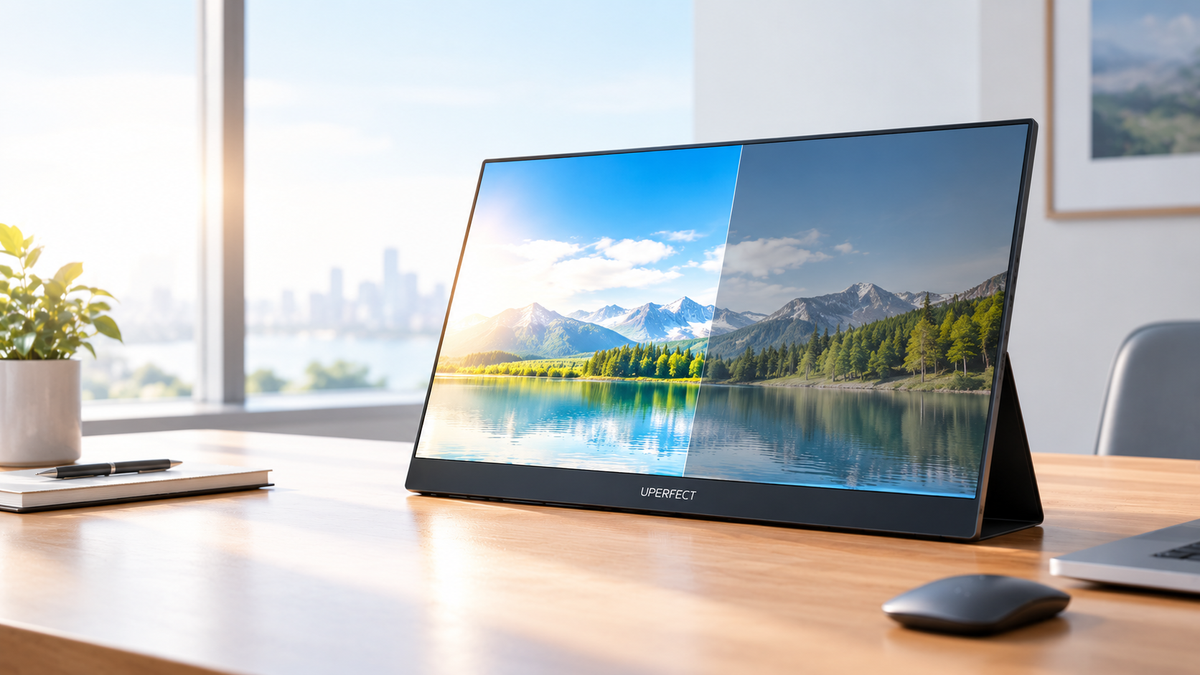
Ever bought a monitor that looked amazing on the product page, only to find that the screen looks a little dimmer or the colors seem different once you plug it in? You're not alone. And no, it doesn't automatically mean you've received a faulty display.
The brightness, color gamut, and other specifications listed on a monitor's product page are based on measurements taken under specified testing conditions. When measured using appropriate methods, these figures provide reliable references for understanding a display's capabilities. However, what you actually see on screen can vary depending on your settings, lighting, power supply, and even the content you're watching.
So, what's going on? Let's break down the most common reasons your monitor might look different from what you expected, and what you can do about it.
Why Does My Monitor Look Dimmer Than Advertised?
First things first, advertised brightness doesn't always mean the screen will look equally bright in every situation. There are a few things worth checking before assuming something is wrong.
Peak Brightness Isn't Always Sustained Brightness
When you see a monitor advertised with a brightness of 500 nits, it's worth checking exactly what that number represents.
Some displays advertise peak brightness, which may only be achievable under specific conditions or across a limited area of the screen. Typical brightness, on the other hand, generally describes a more representative operating level.
That means a monitor with a peak brightness of 500 nits might not maintain that level across the entire screen all the time. The difference comes down to how brightness is measured and the conditions under which the display operates.
The good news is that this doesn't automatically mean the advertised figure is misleading. You just need to understand what it actually tells you.
If you're interested in how screen brightness is measured, check out our guide on how to test the brightness of an LCD display.
HDR Can Make Your Screen Look Darker
Here's something that catches people off guard: turning on HDR doesn't necessarily make everything on your screen brighter.
HDR is designed to reproduce a wider range of brightness levels, allowing bright highlights to stand out against darker areas. But the actual result depends on your monitor's capabilities, the content you're viewing, and how your computer handles HDR.
On some displays, desktop content can actually look darker after HDR is enabled. This doesn't necessarily indicate a problem with the backlight. It may simply be how the system processes the image.
What should you do?
Try displaying the same content in both HDR and SDR modes. Check your computer's HDR settings and the monitor's picture mode, too. If the image looks normal in SDR but noticeably darker in HDR, the issue may be related to HDR processing rather than a defective screen.
Can a USB-C Power Supply Affect Monitor Brightness?

Absolutely. This is particularly important if you're using a portable monitor, since many models can receive power directly from a laptop or another connected device.
Your Laptop Might Not Supply Enough Power
Not all USB-C ports deliver the same amount of power. Some support video output but may not provide enough power for a connected monitor to operate at its full intended capability.
Depending on the monitor's design, insufficient power can lead to reduced brightness, flickering, or intermittent signal loss. Some displays may continue working, but their performance can be limited.
If your screen looks dimmer than expected, try these simple checks:
- Check the monitor's recommended power input in the user manual or product specifications.
- Make sure your laptop's USB-C port can supply the power the monitor requires.
- If your monitor supports external power, try a compatible power adapter.
- Disconnect unnecessary USB accessories that might share the available power.
- Test the monitor with another compatible power source.
If the brightness improves after connecting an appropriate power adapter, insufficient power delivery may have been the culprit.
Just keep in mind that more power doesn't mean unlimited brightness. An external adapter can help the monitor receive the power it needs, but it won't push the display beyond its designed capabilities.
Could the Cable Be the Problem?
It could, especially if you're also experiencing missing display options, flickering, or an unexpected resolution.
A compatible cable and port help ensure that your monitor receives the intended video signal. Depending on your setup, connection limitations can affect refresh rate, HDR availability, or color format.
Try another compatible cable or port and check whether your computer supports the display mode you're trying to use.
A cable doesn't normally determine the panel's maximum brightness directly, but a connection issue can prevent you from getting the display experience you expected.
Why Do My Monitor's Colors Look Different From the Product Images?
Brightness isn't the only thing that can look different in everyday use. Maybe whites appear too yellow, reds look overly saturated, or the whole screen seems a little washed out.
Before worrying about the panel itself, take a look at your display settings.
Check Your Picture Mode and Color Temperature
Most monitors offer different picture presets, such as Standard, Movie, Game, or Reading mode. These settings can change brightness, contrast, gamma, and color temperature.
For example, a warmer color temperature can make white areas look slightly yellow, while a cooler setting may give the screen a bluish tint. Neither necessarily means the display is faulty. It may simply be using a different setting from the one you expected.
Your computer can also change how colors appear. Windows Night Light, macOS Night Shift, blue-light reduction features, and custom color profiles can all affect the image.
Here's what I'd try first:
- Reset the monitor to its default picture settings.
- Temporarily turn off Night Light or other blue-light filters.
- Check whether a custom color profile is being applied.
- Compare the same image after making these changes.
If the colors suddenly look more natural, you've probably found the cause.
Does a Wider Color Gamut Mean Better-Looking Colors?
Not necessarily. A monitor with a wide color gamut can reproduce a broader range of colors, but that doesn't guarantee every image will look exactly as intended.
For example, standard sRGB content may appear overly saturated when displayed in a wide-gamut mode without appropriate color management. Meanwhile, color accuracy depends on how closely the displayed colors match their intended reference values.
In other words, a monitor can support a wide range of colors without reproducing every color perfectly.
If you'd like to understand the differences between sRGB, NTSC, Adobe RGB, and DCI-P3 in more detail, take a look at our guide to color gamut differences.
Can Power-Saving Mode Make a Monitor Less Bright?
Yes, depending on your monitor and connected device.
Power-saving features are designed to reduce energy consumption, and some can affect display brightness or power delivery. For example, a laptop may change its display behavior when running on battery power, while certain monitors offer Eco modes or automatic brightness adjustments.
If your screen looks dimmer when you unplug your laptop, don't overlook this possibility.
Try connecting your laptop to its power adapter and comparing the results. Then check your operating system's battery settings and see whether your monitor has an Eco, Power Saving, or automatic brightness option.
One thing to remember is that these features don't behave the same way on every device. A laptop's battery settings might affect only its built-in screen, while the power available to an external monitor depends on the connection and hardware.
The easiest way to find out is to change one setting at a time and see whether the display responds.
Why Does My Monitor Look Washed Out in a Bright Room?

Ever noticed how a screen looks perfectly fine indoors but suddenly seems dull when you're sitting beside a sunny window?
That's because perceived brightness isn't just about how much light your monitor produces. The light around you matters, too.
Direct sunlight, overhead lighting, and reflections can make dark areas harder to see, reducing the perceived contrast of the image. Even a monitor with a high brightness rating can look washed out when reflections cover the screen.
The same goes for color. Warm indoor lighting or colored reflections can influence how you perceive whites and other shades.
Fortunately, a few small adjustments can help:
- Avoid positioning your monitor directly opposite a bright window.
- Adjust the screen angle to reduce reflections.
- Use consistent, neutral lighting when evaluating color.
- Increase brightness when necessary, provided the monitor has enough available brightness for the environment.
Of course, turning up the brightness won't eliminate every reflection. Sometimes, simply changing where your monitor sits can make a bigger difference.
Do Advertised Monitor Specifications Tell the Whole Story?
Monitor specifications are useful, but you need to know what each figure actually represents.
A product page may list brightness in nits, color gamut coverage as a percentage, or a Delta E value for color accuracy. Each tells you something different about the display.
When comparing monitors, here's what to look out for:
- Brightness: Check whether the figure refers to typical, maximum, or peak brightness.
- Color gamut: Make sure you're comparing coverage of the same color space.
- Color accuracy: Look for the stated Delta E value and any available calibration information.
- HDR: Check whether the monitor's hardware can deliver the HDR performance you expect, rather than looking only at HDR signal compatibility.
- Power requirements: Confirm that your connection and power supply support the monitor's intended operation.
For example, two displays can advertise similar color gamut coverage but still look different because of their picture modes, calibration, and color management.
Likewise, a monitor can meet its specified brightness under the stated test conditions without looking equally bright in every room or operating mode.
That's why it's worth looking beyond a single number when choosing a display. For everyday office work, a business monitor with consistent, comfortable image quality may be a better fit than one selected solely for its highest advertised brightness.
Can Display Technology Make a Difference?

Absolutely. While your viewing environment plays a major role, a display's backlight system and optical design also influence how clearly you can see the image.
This is where UPERFECT NxtLED technology comes in NxtLED, short for Next Opti-Matrix LED, is UPERFECT's proprietary evolution of LCD technology, designed to improve the overall display experience.
One of its key pillars is Omni Visible, which focuses on providing clear, consistent visibility from different viewing angles and in a variety of viewing conditions. This is particularly useful when you need to share your screen with colleagues, work in different positions, or use your monitor in changing environments.
Of course, viewing angle performance and visibility in bright environments are not exactly the same thing. Direct sunlight and strong reflections can still affect what you see, and actual performance depends on the specifications and optical design of the individual monitor.
How to Fix Brightness or Color Problems
If your monitor still doesn't look right, don't worry. You don't need specialized equipment to start narrowing down the cause.
Work through these checks one at a time:
- Reset your display settings. Restore the monitor's default picture mode and temporarily disable unnecessary image enhancements.
- Check your power supply. If you're using a portable display, make sure your computer or adapter provides sufficient power.
- Review your HDR settings. Compare the same content in SDR and HDR to see whether the difference comes from HDR processing.
- Turn off power-saving features temporarily. Check both your computer's battery settings and any Eco or automatic brightness options on the monitor.
- Check your cable and connection. Try another compatible cable or port if you experience flickering, missing display options, or unexpected image behavior.
- Adjust your viewing environment. Reduce reflections and compare the display under consistent lighting.
- Test another device. Connect the monitor to another compatible computer or source device. If the issue disappears, the original device, its settings, or the connection may be responsible.
If you've tried these steps and the screen still looks unusually dim, shows severe color inconsistencies, or flickers repeatedly, it's worth contacting the manufacturer's support team. Include your monitor model, power source, connection method, and a description of the problem so they can help you investigate.
For a more objective assessment of brightness and color performance, professional measurement equipment may be necessary. Visual comparisons alone cannot reliably establish whether a monitor meets a particular numerical specification.
Final Thoughts
A monitor that looks different from what you expected isn't necessarily a bad monitor. Sometimes, it's simply a matter of how the display is configured, how much power it's receiving, or the conditions in which you're using it.
The specifications on a product page provide useful, reliable references when interpreted under the appropriate testing conditions. But everyday viewing involves more variables than a controlled measurement, from HDR and power-saving modes to color temperature and ambient lighting.
So before assuming your display isn't performing as advertised, check your settings, verify your power supply, and give the screen a fair comparison under consistent conditions.
And if the problem persists after you've ruled out these factors, don't hesitate to reach out to UPERFECT for further assistance. A few simple checks may be all it takes to get your monitor looking the way you expected.
Share:
How to Check Monitors Resolution?