

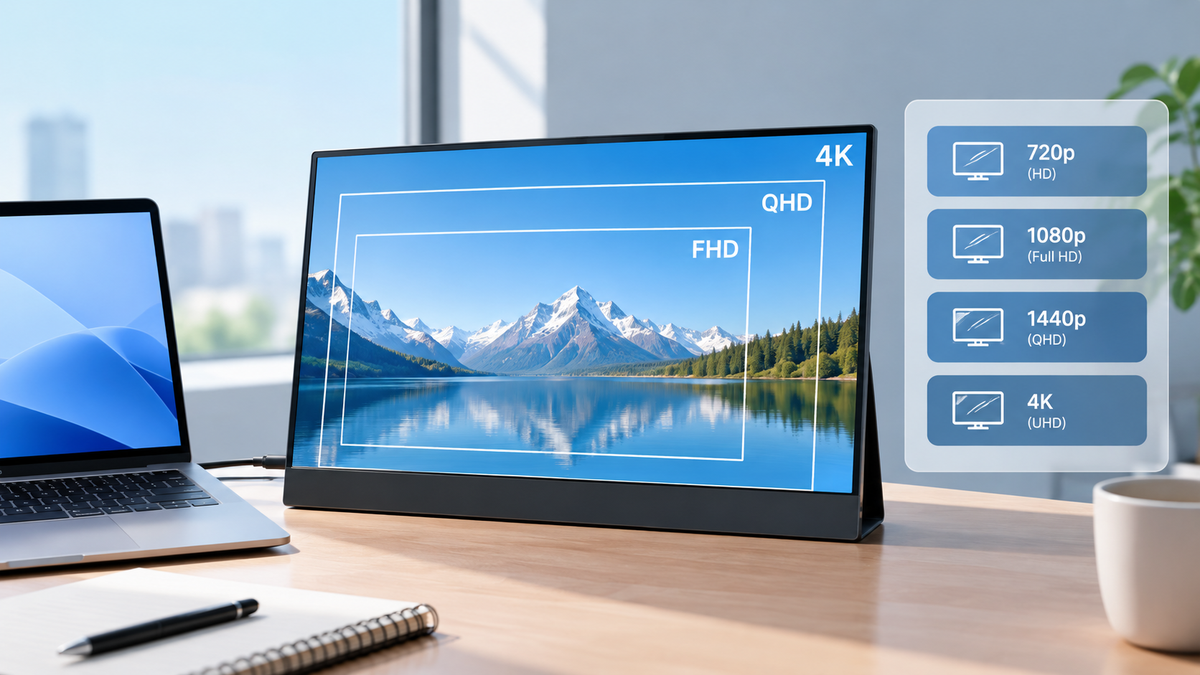
Knowing your monitor's resolution can help you check display quality, adjust screen settings, and make sure your screen is running at its optimal resolution. Whether you use a desktop monitor, laptop display, or portable monitor, finding this information only takes a few steps.
If you are using a UPERFECT portable monitor, checking its resolution can also help you confirm that your computer is sending the correct display signal. This is especially useful when connecting an external screen for work, gaming, or travel.
In this guide, you'll learn how to see resolution of monitor on Windows, macOS, and other devices, how to identify your monitor's native resolution, and what to do if the displayed resolution is incorrect.
What Is Monitor Resolution?

Monitor resolution, also known as display resolution, is an important factor in determining how much detail a screen can display. It refers to the number of pixels used to form an image on the screen, expressed as width × height. Image resolution, by comparison, describes the pixel dimensions of a digital image. When an image's resolution is appropriately matched to a display's capabilities, it can be shown with greater detail, although scaling and image quality also affect the final result.
For example, a monitor resolution of 1920 × 1080 means the display uses 1,920 horizontal pixels and 1,080 vertical pixels. Higher resolutions generally provide more detail and workspace, although the actual viewing experience also depends on screen size, pixel density, scaling, and display quality.
Here are some common monitor resolutions:
|
Standard |
Resolution |
Aspect Ratio |
Common Uses |
|
SVGA |
800 × 600 |
4:3 |
Older computers |
|
XGA |
1024 × 768 |
4:3 |
Older projectors |
|
HD |
1366 × 768 |
16:9 |
Basic laptops |
|
WXGA |
1280 × 800 |
16:10 |
Older laptops |
|
UXGA |
1600 × 1200 |
4:3 |
Legacy monitors |
|
WUXGA |
1920 × 1200 |
16:10 |
Office work |
|
Full HD |
1920 × 1080 |
16:9 |
Everyday use and gaming |
|
WQHD (QHD) |
2560 × 1440 |
16:9 |
Gaming and productivity |
|
UHD (4K UHD) |
3840 × 2160 |
16:9 |
4K video and creative work |
|
DCI 4K |
4096 × 2160 |
Approx. 17:9 |
Cinema production |
Understanding these differences makes it easier to determine whether your monitor is operating at its intended resolution.
How to See the Resolution of an External or Portable Monitor?
When you connect an external monitor, your computer's display settings usually show the resolution currently assigned to that screen. However, the current resolution does not always indicate the monitor's native resolution or maximum supported resolution.
Method 1: Check Your Computer's Display Settings
Follow these steps to check your external monitor's resolution:
- Connect the monitor to your computer using a compatible USB-C, HDMI, or other supported video connection.
- Turn on the monitor and make sure your computer recognizes it.
- Open your computer's display settings.
- Select the external monitor rather than the built-in laptop display.
- Check the current resolution and available resolution options.
- Compare the result with the monitor's official specifications.
On Windows, you can also open Advanced display to check the active signal mode and other display information. On macOS, open System Settings > Displays to review the available display options.
Method 2: Check the Monitor's Back Label
Some monitors have a label on the back showing the model number and product information, while others may not.
Method 3: Check the Product Packaging or User Manual
The original packaging or user manual may list the monitor's resolution and other technical specifications.
Method 4: Check the On-Screen Display (OSD)
Some monitors have an On-Screen Display (OSD), a built-in menu for adjusting settings such as brightness, contrast, and color. Depending on the model, the OSD may also display input signal information, including the current resolution or refresh rate.
Look for an Information or Signal Information option if your monitor provides one. However, not every monitor displays resolution information through its OSD, and the input signal resolution may differ from the panel's native resolution.
Note: Not all monitors provide resolution information through these methods. If the information is unavailable, check the manufacturer's official product specifications to confirm the monitor's native resolution. Also, the resolution shown in the OSD, when available, may indicate the current input signal resolution rather than the panel's native resolution.
What If Your Monitor's Resolution Is Incorrect?
For portable monitors, the connection method matters. Some USB-C ports support video output directly, while others may require an adapter or a different connection. HDMI adapters, docking stations, and graphics hardware can also limit the resolutions available to your computer.
For example, if your monitor supports 2560 × 1600 but Windows only offers 1920 × 1200, check the cable, adapter, port capabilities, graphics drivers, and monitor specifications before assuming the display is defective.
Remember that resolution and refresh rate are different. Resolution describes the number of pixels on the screen, while refresh rate, measured in hertz (Hz), describes how many times the screen refreshes per second.
How to Find Your Monitor's Native and Best Resolution?
Your monitor's native resolution is the physical pixel resolution its display panel is designed to use. It is usually the best choice for sharp text and clear images.
To find the best resolution for your monitor, follow these steps:
- Check the manufacturer's specifications.Find your monitor's model number and look up its native resolution on the official product page.
- Check your display settings.On Windows, look for the resolution marked Recommended under Settings > System > Display. On macOS, open System Settings > Displays and review the available options.
- Consider screen size and scaling.Higher resolutions can provide finer details, but display scaling can help keep text and interface elements comfortable to read.
- Check compatibility if the native resolution is unavailable.Your cable, adapter, docking station, or graphics driver may limit the available options.
For most users, the best starting point is the monitor's native resolution with a comfortable scaling setting. The highest resolution available in your computer's settings is not necessarily the monitor's native resolution, so check the manufacturer's specifications if you are unsure.
How to Check Resolution of Monitor on Windows 11 and Windows 10?
Windows provides a built-in way to check your monitor's current resolution. You don't need to install additional software.
Method 1: Check Display Settings
Follow these steps to find your screen resolution:
- Right-click an empty area of your desktop.
- Select Display settings.
- If you have multiple displays, select the monitor you want to check.
- Scroll to the Display resolution
- Read the resolution shown in the drop-down menu.
For example, if the setting displays 1920 × 1080, your screen is currently configured to use Full HD resolution.
Windows may label one option as Recommended. This usually indicates the resolution Windows identifies as the most suitable for that display based on its reported capabilities.
You can check the available options without changing anything. If you decide to select another resolution, Windows typically asks you to confirm the change.
Method 2: Check Advanced Display Settings
Advanced display settings provide additional information about your screen.
- Open Settingsand navigate to System > Display.
- Open Advanced display.
- Select the monitor you want to inspect.
- Review the display information, including the desktop mode and active signal mode when available.
These two resolution values can differ. Desktop mode describes the resolution used by the operating system, while active signal mode describes the resolution being sent to the display.
This distinction is useful when troubleshooting external monitors, docking stations, adapters, or portable displays. For example, your desktop may be configured at one resolution while the actual output signal uses another.
How to See Monitor Resolution on a Mac?
If you use a MacBook, iMac, or an external monitor connected to a Mac, you can find display information through macOS settings.
- Click the Apple menu in the top-left corner.
- Open System Settings.
- Select Displays.
- Choose the display you want to inspect, if multiple displays are connected.
- Review the available resolution and scaling options.
Depending on your Mac and macOS version, the settings may emphasize scaled interface options rather than showing the panel's full pixel resolution directly.
For example, a high-resolution display may use a scaled setting that makes text and interface elements appear similar in size to those on a lower-resolution screen. This does not necessarily mean the panel itself has a lower native resolution.
If you need the exact pixel dimensions, check the display's technical specifications or the manufacturer's documentation.
What to Do If Your Monitor Resolution Is Incorrect?
If your monitor looks blurry or its expected resolution is missing, try these troubleshooting steps.
- Check the cable and connection.Make sure the cable and ports support the resolution you want. Try a compatible cable or connect the monitor directly to your computer if possible.
- Update your graphics driver.An outdated or incompatible driver may prevent your computer from detecting the display's supported resolutions correctly.
- Check display settings.Confirm that you selected the correct screen and that its resolution is set to the recommended or native value.
- Inspect adapters and docking stations.Some adapters and docks support lower maximum resolutions than the monitor itself. Verify their specifications.
- Reconnect the monitor.Disconnect and reconnect the display, then restart your computer if necessary. This may help the operating system detect the monitor correctly.
- Check the monitor's documentation.If the expected resolution remains unavailable, consult the manufacturer's specifications and support resources.
Avoid forcing a resolution that the monitor does not support. An unsupported setting may result in a blank screen or an unstable display until the previous setting is restored.
Frequently Asked Questions
How do I find my monitor's resolution without opening Settings?
On Windows, right-click the desktop and select Display settings to access the resolution information quickly. On a Mac, open System Settings and select Displays. The exact labels may vary by operating system version.
Is 1920 × 1080 the same as 1080p?
Yes. Full HD, commonly called 1080p, generally refers to a resolution of 1920 × 1080 pixels. The term 1080p also describes a progressive-scan video format.
Does a higher monitor resolution always mean a better picture?
Not necessarily. Higher resolution can provide more detail, but image quality also depends on pixel density, color accuracy, contrast, brightness, and viewing distance. A well-calibrated display with a lower resolution may still provide a better experience for certain tasks.
Why does my monitor show a lower resolution than its specifications?
Possible causes include an incompatible cable, a limited adapter or docking station, outdated graphics drivers, incorrect display settings, or a connection that does not support the monitor's maximum resolution.
Can I check monitor resolution online?
Some websites can estimate or report browser display dimensions, but these measurements may reflect your browser window or desktop scaling rather than the monitor panel's native resolution. For accurate information, use your operating system's display settings and verify the manufacturer's specifications.
Final Thoughts
Checking your monitor's resolution is straightforward once you know where to look. On Windows, open Display settings; on a Mac, visit System Settings and select Displays. For external and portable monitors, make sure you select the correct screen and distinguish the current output resolution from the panel's native resolution.
If you are choosing a display for a laptop, home office, or travel setup, understanding resolution can help you compare screen options and find the right balance between image clarity, workspace, and portability.
Share:
Can I Use My MacBook, iPad or Tablet as an External Monitor? A Complete FAQ & Guide