

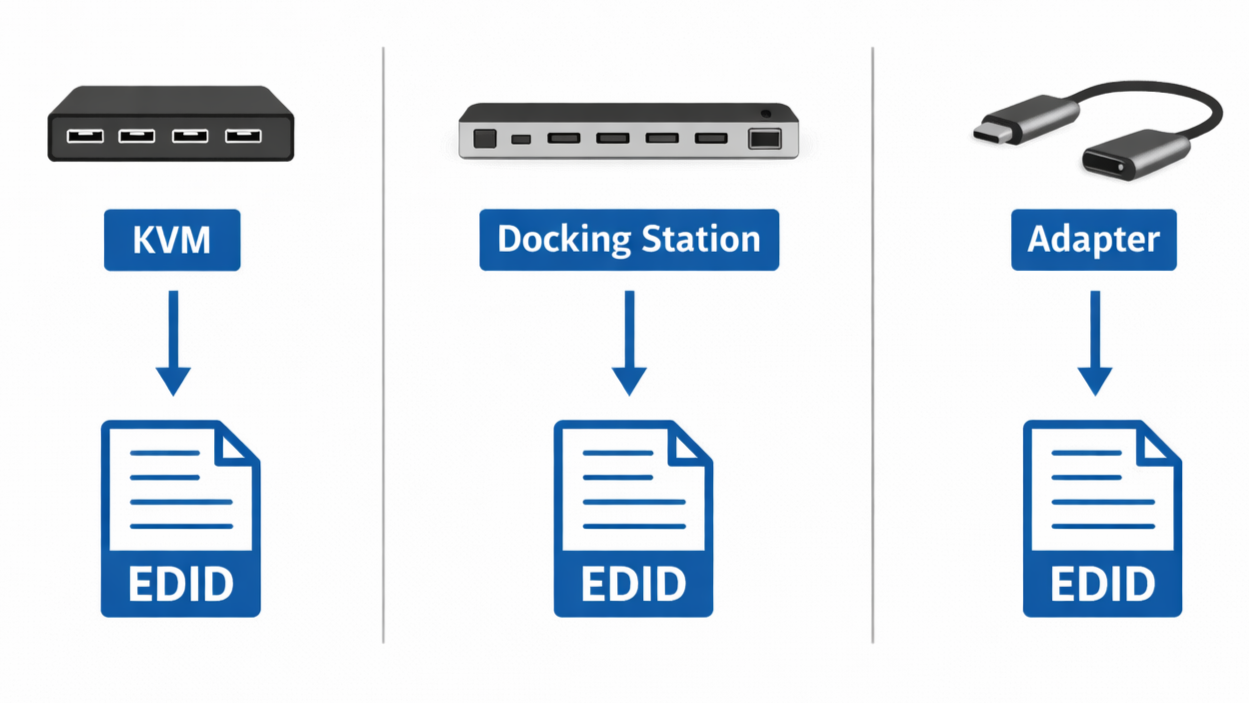
The evolution of modern display setups has reached a level where complex connections exist between a monitor and a computer. These days, setups utilize docking stations, USB-C, adapters, and hardware switches to simplify cable management. Even though these tools are introduced for easy connection, they can sometimes initiate serious changes in how a computer configures a display.
One of the most noticeable changes is seen when a monitor starts misbehaving after it is connected to an intermediary device. The visuals may appear at extremely low resolutions, with disabled HDR settings and loss of other HDR display features that will naturally work with a direct connection. So, why does the monitor act differently depending on how it is connected?
This article explores how certain intermediary display devices influence EDID data and how this affects the display features. We also examine why display capabilities can change with the introduction of these intermediary devices.
EDID in Real-World Display Chains (Beyond Direct Connections)
In most cases, a display setup involves the direct connection of a monitor to a system. At this point, the system gains access to data (EDID) that shows what the display can do. However, modern setups have taken a completely different route to get better connection. This is why they involve intermediaries like docking stations, USB-C ports, signal converters, KVM switches, and other display hardware.
After the addition of a display intermediary, the monitor no longer transmits EDID directly to the computer. Instead, the capability data is transmitted through a chain of devices that somehow influences the final EDID result that reaches the system. This result is the reason why the same monitor may behave differently depending on the type of setup used for connection.
Meanwhile, there are two common factors that often determine the display behavior: EDID forwarding and EDID emulation. EDID forwarding happens when the intermediary display device transmits the exact capability data of the monitor through the connection chain. In this process, the intermediary devices have no influence on the EDID data much like in a direct connection.
With EDID emulation, the intermediary display devices influence the EDID data by presenting its default display information to the system. This usually happens while using certain docking stations that keep default display settings even if the connection process is interrupted at any point in time.
How Docking Stations Modify EDID Behavior?

Docking stations have been introduced into modern display setups to serve as additional control during connection between system and display. Instead of a direct connection, the dock manages the interaction and reports the EDID data to the system. Since the docking station is in charge, they can easily support features like multi-monitor output and hot-plugging.
EDID Caching Inside Dock Controllers
EDID caching is one of the major features of most modern docking stations. This process allows the docks to store the display’s EDID data internally. Nevertheless, the docking station will no longer have to retrieve EDID data every time the monitor is connected to the system. Instead, the dock automatically transmits the stored data to the system for easy and fast connection.
However, this process can result in complications when users hot-swap monitors. If the dock remains connected while monitors are switched, the intermediary device will continue transmitting the default EDID data of the previously connected display. Practically, this data inconsistency can cause the system to display poor resolutions, low refresh rates, and even lose other HDR display qualities.
Multi-Stream Transport (MST) and Shared EDID Constraints
Multi-Stream Transport has become one of the most commonly used display technologies for modern display setups. Many docking stations utilize this tech to drive multiple monitors from a single DisplayPort connection.
Since MST distributes bandwidth across multiple monitors, docks are meant to manage them by reporting minimal display capabilities to avoid exceeding the bandwidth limit. While some of the monitors involved may support higher resolution and refresh rate, the dock has to limit its quality.
However, when multiple monitors are connected to the same setup, the dock may adjust the EDID data transmitted to the system. To maintain stable connection, the dock will simplify already reported features of each monitor. At this point, the EDID is just a representation of the capabilities of the dock across the shared link, rather than the capacity of each monitor.
Firmware Limitations in Budget vs Premium Docks
There are times where different docks can transmit different EDID data for the same visual system. This is simply a matter of firmware quality. On one hand, a premium or high-quality dock may transmit more of the display’s exact capabilities, while a budget dock might simplify the capabilities of the monitors. This explains why a visual system may possess higher resolution and HDR qualities with one dock and possess fewer features when connected to another.
How KVM Switches Handle EDID?
Unlike docking stations, KVM switches are one of the most commonly used intermediary display devices that allows multiple systems to share the same display. In this case, users can easily switch systems while using the same monitor. However, the process of switching between systems will force most KVM switches to report already stored EDID data, rather than transmitting it in real-time.
Virtual Or Emulated EDID Profiles
KVM switches generally present a predefined data to every connected system. This predefined data are available in 2 standards: virtual or emulated EDID profiles. Oftentimes, the KVM provides the same display profile to all connected systems even while some may be inactive. This process is important for stable switching… a process where users can easily access the monitor on different systems without resetting display settings.
Unfortunately, this feature has its own downside. Since the KVM switch provides a fixed profile, the transmitted EDID data may be limited and conservative compared to the actual capability of the monitor.
EDID Locking and Forced Modes
There are KVM switches that always stick to a predefined set of modes by locking down a previously transmitted EDID data. This process is for stability and is known as EDID locking or forced display mode.
During EDID locking, the KVM switch may be conservative about resolutions, refresh rates, and other HDR qualities. In some cases, visual outputs may come without HDR options and very poor resolutions. This limitation is easier to notice in gaming monitors that support high refresh rates and HDR features.
Active vs Passive Adapters and EDID Translation
With the transition of display connections, adapters are fast becoming an important component in modern display setups. The introduction of connection standards like HDMI, DisplayPort, and USB-C, adapters are used to bridge compatibility gaps. However, these devices have the ability to influence the EDID data transmitted to the system.
Generally, adapters are categorised into two: passive adapters and active adapters.

Passive Adapters (Signal Pass-Through)
Just as it implies, passive adapters are components that transmit compatible signal types without having any impact on the signal. In essence, EDID data can easily be transmitted through the adapter without having external influence. Hence, they are considered transparent bridges in a display chain.
Active Converters (DP-to-HDMI, USB-C-to-HDMI, etc.)
Active converters are a more complex component because they introduce conversion chips that reformat EDID data. Some examples are DisplayPort-to-HDMI converters, USB-C-to-HDMI adapters, and other components that can bridge video standards. Since they must process the video signal, they also become responsible for managing EDID data transmitted to the system.
In most cases, the in-built conversion chip designed in this type of adapter often modifies the EDID data presented to the system. While they ensure compatibility across board by adjusting the display profile, the system may not recognise the actual capabilities of the display.
Unfortunately, this also comes with feature filtering and reduced color quality. Oftentimes, active converters remove options that its in-built hardware cannot handle. This takes out bit depth, color features, and other HDR support.

Portable Monitor-Specific Considerations
Unlike most heavy-duty monitors, portable monitors are usually designed with tight hardware integration as well as direct input chains. This type of monitor is optimized for direct connection with USB-C or any video transmission cable. This is because the display is expected to receive video signals in a particular format.
Why Portable Monitors Are More Sensitive to EDID Changes?
Portable monitors are highly sensitive to EDID changes because they are designed with tight controlled input for direct connection. Since they are engineered to a specific connection mode, it makes them very dependent on the component driving the signal.
Meanwhile, USB-C is one of the most commonly used connectors by portable monitors, due to its ability to carry video signals and support data transfer. In a setup involving a USB-C port, the system must accurately select the monitor’s capabilities to avoid changes in EDID data.

Using Portable Monitors with Docking Stations
Since portable monitors are engineered for simplicity, connecting them to docking stations can trigger complex connection issues. A dock can introduce new constraints when connected to a portable monitor with tight hardware integration.
Bandwidth Allocation Problems
Docking stations that provide charging, USB data transfer, and video output through a single upstream connection must divide available bandwidth among these functions. When connected, all these functions compete as the dock gives priority to certain operations.
Why a Portable Monitor May Fall Back to 60Hz?
When portable monitors are connected through docks or adapters, one of the most noticeable features is how the visuals end up with low refresh rates. Sometimes, they automatically default to as low as 60Hz even while the portable monitor supports higher levels. This flaw is usually related to how the connection path and intermediary components manage bandwidth and capability reporting.
If the video data and other operation requirements exceeds the abilities of the docking station, the intermediary device may adjust the display data to a more conservative profile. This is usually seen when a dock prioritizes a stable 60Hz output over visuals with unstable high refresh rate.
Portable Monitors with KVM Switches
Nowadays, stable monitors are engineered with compatible KVM-like switching functionality. This allows users to easily connect the portable monitor with other source devices to the display.
If the EDID data transmitted does not match what is expected, the system will adjust the visual settings. Moreover, if one source device in the setup does not have HDR support, then the visual system may need to readjust the EDID data for the sake of compatibility.
Portable Monitors with USB-C to HDMI Adapters
The overall visuals of a USB-C connected portable monitor depends on how the adapter processes the signal translation between protocols. This is why certain USB-C to HDMI adapters affect the overall color behavior to maintain signal stability.
Since higher color depth mode increases the amount of pixel data transmitted, not all converters can handle such workload across different devices. Hence, adapters have to default back to more conservative color settings with low bit depth.
Common Real-World Symptoms Caused by EDID Alteration
When EDID data is compromised or adjusted by intermediary devices, the source device will never receive the exact display capabilities. Here are some of the most common symptoms that your EDID is altered;
- Resolution capped below panel capability
- Refresh rate options missing
- HDR toggle unavailable
- Color format unexpectedly switching to YCbCr
- Display detected but black screen
How to Diagnose EDID Interference?
Solving EDID interference has to be one of the most difficult tasks for any user. While it is hard to pinpoint the compromised component, here are some steps to diagnose EDID-related issues:
- Comparing behavior with direct connection
- Testing different signal paths
- Checking monitor OSD signal information
- Understanding when the issue is chain-related, not panel-related.
Designing a Stable Multi-Device Setup
One of the best ways to set up a multi-device display is by balancing convenience and integrity. Now, intermediary devices have created an avenue for users to manage multiple systems.
Some KVM switches prioritize stability over high-quality performance. Similarly, not all docks are engineered to handle maximum HDR output.
Conclusion
Ultimately, intermediary devices have the ability to filter EDID data to improve compatibility and enable stable hot-switch. These mechanisms are useful for maintaining connection reliability, but they can also limit the display options exposed to the operating system. In the end, portable monitor configurations are particularly sensitive to these chain effects because they often rely on tightly integrated signaling paths such as single-cable USB-C video delivery.
FAQ
How does a KVM switch handle EDID data?
KVM switches typically manage EDID data by either forwarding the monitor’s capability information or presenting an emulated EDID profile to connected computers.
Why does my monitor lose resolution when connected through a KVM switch?
Resolution loss is often caused by EDID filtering, bandwidth sharing, or simplified capability reporting inside the KVM switch.
Why does HDR disappear when using a KVM switch?
Some KVM switches do not fully propagate HDR signaling or may disable HDR reporting to maintain compatibility across different connected systems.
Does a KVM switch add input latency?
Most modern KVM switches are designed to minimize latency, but signal processing, switching logic, and internal buffering can introduce small delays compared to direct connections.
Which KVM switch do I need for 4K 144Hz monitors?
High-refresh, high-resolution displays require KVM switches that explicitly support the necessary bandwidth specifications.
Which monitors have built-in KVM functionality?
Some modern monitors include integrated KVM-like switching features, allowing users to control multiple devices using the monitor’s built-in USB hub and input switching controls.
What is the difference between a KVM switch and a KVM extender?
A KVM switch is used to share a keyboard, video display, and mouse between multiple computers, while a KVM extender is designed to transmit these signals over longer distances using additional transmission hardware.
Are KVM switches safe for high refresh rate monitors?
High-quality KVM switches designed for high-bandwidth applications can support high refresh rate monitors safely. However, compatibility depends on the switch’s internal hardware, firmware design, and advertised bandwidth limits. Low-specification switches may restrict performance or introduce signal limitations.
Share:
How EDID Handshake Works Between Source and Display?
What Is Tone Mapping? Why HDR Look Different on Every Monitor