




How DisplayPort Alt Mode Actually Works Over USB-C?
USB-C has become one of the most widely used connector standards in modern visual display. While they often appear deceptively simple and easy-to-use, this cable is quite complicated. The connector is designed to hold a complex system of signal routing and protocol negotiation needed for a quality visual experience.
However, there are cases where identical USB-C ports behave completely differently. This behavior is solely dependent on how USB-C handles video at a signal level. Unlike typical connector standards like HDMI and DVI, USB-C is not inherently a video interface.
Since this physical connector is clearly limited, its ability to transmit video output depends on whether the port supports DisplayPort Alternate Mode. To help USB-C users, this article breaks down how DisplayPort Alt Mode actually works over USB-C, focusing on necessary features like signal behavior, lane switching, and bandwidth allocation.
USB-C Is a Connector, Not a Video Standard
There is a misleading notion that USB-C is recognized as a display interface, but this isn’t true. In some cases, it is impossible to judge if it supports video output by merely observing the port. Unlike other video interfaces, USB-C does not reveal how many displays it can drive, or what resolutions and refresh rates are possible.
Nevertheless, this same connector can serve numerous purposes including charging, file transfer, and even video output; only if these functions are supported. This is why some USB-C are highly functional, and others are very limited. In other words, USB-C is simply the port type and not the functionality.

Physical Interface Vs Signal Protocol
Generally, the physical interface of a USB-C port works in hand with the signal protocol. However, they can also be differentiated at a deeper level.USB-C is the standard port used for connecting a source device to a peripheral device. On the other hand, the abilities and features of this port are determined by the signal protocol mapped on the pins that come with the connector port. For visual displays, that protocol is known as DisplayPort which can be found in USB-C ports that use DisplayPort Alternate Mode.
While some USB-C ports may not support DisplayPort Alternate Mode, they might still function perfectly for charging and data. At the deeper level, video support on USB-C depends on many criteria.
Why USB-C Does Not Guarantee Display Output?
There are cases where USB-C will not guarantee video output even while supporting DisplayPort Alternate Mode. Beyond the connector and signal protocol, there are other factors that determine if a USB-C port is able to display video signals. They include;
- Display controller
- GPU integration, and
- Firmware support.
There are some devices that don't possess display controller connection in the USB-C port. This affects the connector’s ability to transmit video output, making it ideal for other functions like charging and file transfer. Same goes for systems that cannot generate DisplayPort signal and route it to the USB-C.
Beyond hardware, the OS and firmware of the device must meet certain compatibility demands in signal switching. Many device manufacturers pay little attention to external display features, focusing on power, cost, and aesthetics.
What Is DisplayPort Alt Mode?
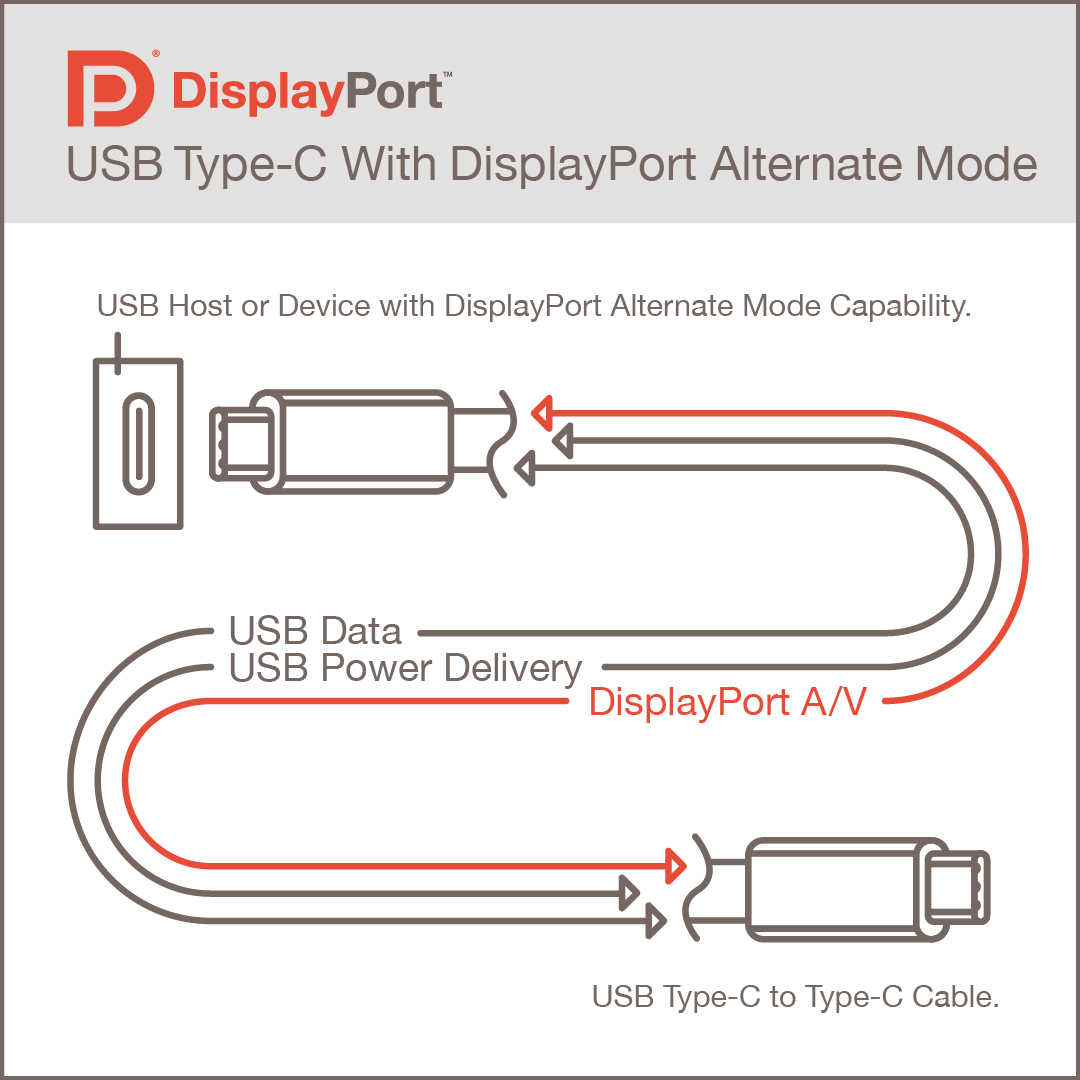
DisplayPort Alt Mode is a feature that allows the USB-C port to transmit video output by carrying the DisplayPort signal. This happens when the DisplayPort Alternate Mode turns the USB-C into a DP output, allowing the visual display to receive those signals through a different interface.
Why Alt Modes Exist?
Generally, USB-C ports were never equipped with the ability to handle high bandwidth in video transmission. Usually, the USB protocol is equipped with packetized data transfer, which is ideal for storage. However, this feature cannot keep up with the demands for high bandwidth.
Meanwhile, earlier USB connections had to rely on compression to enable transmission of high bandwidth. Unfortunately, this resulted in low-quality videos and image frames. This is why DisplayPort was adopted as an Alt Mode because it already solved the majority of these problems.
This mode provides a physical data path that is ideal for video output. To solve bandwidth issues, the Alt Mode also provides adaptable bandwidth that offers high resolution without compromising visual quality.
How DisplayPort Is Carried Over USB-C?
While using USB-C in DisplayPort Alt Mode, the port begins to switch between pathways depending on what is demanded. These same pathways can be alternated to transmit video signals. Sometimes, these lanes are switched from USB data signaling to native DisplayPort signaling. The ability to reuse these lanes is what makes USB-C very flexible.
While USB-C possesses four lanes, the port supports two primary DisplayPort lane configurations: the 4-lane DP and the 2-lane DP. For the 4-lane DisplayPort, all four high-speed lanes are dedicated to every function needed by the device. Hence, they have the ability to provide maximum video bandwidth, without reducing video quality.
In contrast, 2-lane DP uses two lanes for every function, while using the remaining two lanes to carry a group of USB versions known as USB 3.x data. This is a very limited lane configuration because it cuts the bandwidth in half. This accounts for lower resolution, color quality and refresh rate.
Since the DisplayPort and USB data alternate between lanes, they indirectly affect data performance and quality. While video quality might appear low, files transfer can also be slower.
Bandwidth Trade-offs in DisplayPort Alt Mode
While USB-C in DisplayPort Alt Mode can easily transmit video output if they meet all the criteria, they often operate within certain bandwidth limits depending on the lane configuration. In other words, every configuration setting that comes with the external display must be compatible with this bandwidth limit.
Resolution, Refresh Rate, and Data Throughput
Anyone would expect a 4-lane configuration to provide better performance compared to 2-lane configuration. However, there are moments where the connection cannot meet up with the bandwidth demands. In this case, the device responds by reducing the resolution, refresh rate, and even color behavior. Since this deficiency is not visible, users may see the visual system work with low-quality performance.
The Role of Display Stream Compression (DSC)
Display Stream Compression is a compression algorithm introduced by VESA to manage the resolution and refresh rate of visual systems. Considering the growing demand for high-quality HDR displays, this standard is used to reduce data requirements for HD videos over limited bandwidth.
Unlike other compression algorithms, DSC is an open standard real-time tech that is widely supported by various signal chains including DisplayPort and USB-C. With this standard, users can enable high-quality visuals of about 8K and above, at a refresh rate of 120Hz.
This standard uses a visually lossless compression method… an advanced algorithm that manages image quality by eliminating redundant data. It was designed specifically to display signal transmission directly from the GPU to the display.
DisplayPort Alt Mode vs Thunderbolt
While alternate modes like DisplayPort Alt Mode and Thunderbolt carry out similar functions, they handle display in different ways. Both modes interface use a USB-C connector, but produce different results. Here is a quick analysis on how Thunderbolt functions with DisplayPort signals.

Image credit: Techdim
How Thunderbolt Carries DisplayPort Signals?
Unlike DisplayPort Alt Mode, Thunderbolt doesn’t have the ability to switch USB-C’s internal “fast lanes” to video. In this mode, Thunderbolt uses one pipeline to transmit video signals and data. Hence, they carry signals at good resolution without alternating between lanes.
However, there are certain architectural factors that differentiate DP Alt modes. The key differences are a result of how bandwidth is managed. On one hand, DisplayPort Alt Mode reassigns physical USB-C lanes to DisplayPort, while Thunderbolt encapsulates DisplayPort inside a unified transport layer.
Why Thunderbolt Is More Predictable for Displays?
Thunderbolt is known for delivering consistent display experience, enforcing a tightly defined behavior across all compliant devices. Unlike DisplayPort Alt Mode, it minimizes implementation variability.
Every Thunderbolt device follows a fixed architecture for the allocation of bandwidth. This is why Thunderbolt is considered to be more predictable for USB-C displays. During display using Thunderbolt, video output and other data do not fight for physical lanes in the same way they do in DisplayPort Alt Mode, making for enough guaranteed space to work properly. Hence, Thunderbolt helps to avoid reducing refresh rates and resolution for quality experience.
Moreover, Thunderbolt components must meet certain compliance requirements for compatibility. This allows it to have a consistent behavior and quality across different devices.
EDID and Handshake Behavior Over USB-C
Extended Display Identification Data (EDID) is a standard means used by a system/source device to communicate the capacity of a visual system. This system is the carrier of information that tells the computer what the display supports, and how it can be optimized for a good experience.
Meanwhile, this identity card works with interface standards like DisplayPort, to successfully transmit visual signals. When DisplayPort is used, the system accesses and analyzes the monitor through the information received from EDID. For the display to function at full capacity, it needs to meet some compatibility features from the system. This identification system is read by the display immediately after it is connected with a system.
How Displays Communicate Capabilities?
The operating system plays a very huge part in coordinating visual systems. When connected to a display, they access the information carried by EDID. This information is then used to build a list of valid display modes, which in a way, determines the visual output.
During connection, this information is sent from the display to the source device, where the GPU determines which display modes are valid. In case of any unsuccessful EDID transmission, the source device may fall back to conservative defaults, thereby producing low-quality visual output.
EDID provides information containing a simple list of data that carries the display’s native resolution, along with refresh rates. These two data have been the most important display data, especially in modern monitors. This is simply used to inform your operating system about the level of ultrawide display and the maximum refresh rate the display supports.
Why EDID Issues Are Common with Adapters and Docks?
USB-C adapters and docks rarely transmit DisplayPort signals without tampering with the data. They usually end up translating between protocols from USB-C to HDMI. During this translation, there is a huge chance that the EDID data will be altered.
However, there is a long chain by which EDID data is transmitted in docking setups. They usually move from GPU to USB-C controller to dock to internal hub to adapter and finally, to the visual display. During connection, the EDID data must move across the chain. Nevertheless, the EDID data is prone to corruption and failed transmission.
Why Identical USB-C Ports Can Behave Differently?
Virtually every USB-C port looks identical in terms of design, but they may function differently. The imprinted hardware determines whether it is compatible for video output, and how well it performs depending on the bandwidth limit.
Hardware Differences Behind the Port
While the external design of the USB-C port has nothing to do with its functionality, the abilities are a result of how it is wired internally and how it connects to the system’s display engine. These functionalities are imprinted at the hardware level, and cannot be changed after they are produced.
Before a USB-C port supports video output, the GPU has to meet a particular compatibility feature. Beyond charging and data transfer, the GPU of the port must have a physical display output path routed to the USB-C controller.
Common Misconceptions About USB-C Video Output
Firstly, the fact that a USB-C port supports charging and data transfer, doesn’t necessarily mean it will support video output. There are numerous ports that can handle high watt charging, but lack DisplayPort signal path.
Secondly, USB-C ports are not upgradable and cannot be enhanced. In other words, users cannot add missing capabilities, especially when the device doesn’t support a particular feature. Meanwhile, USB-C to HDMI adapters often rely on active signal conversion, where the signals from the DP interface are translated into HDMI.
How to Determine Whether a Device Truly Supports DisplayPort Alt Mode
Realistically, it is almost impossible to judge a USB-C port by its design. This is why they come with specifications that display the features they support, especially in the case of video output. Unfortunately, many product pages use misleading language that conceal the actual features of the port.
When reading the specifications, USB-C port manufacturers would only display features that are supported through specific wording. Instead of explicitly stating the absence of a feature (e.g no video support), the feature will most likely be absent.
USB-C port use these indicators for DisplayPort Alt Mode support;
- “DP Alt Mode”
- “DisplayPort Alt Mode”
- “Supports 4K external display via USB-C.”
However, some manufacturers use obscure descriptions to mislead users. These descriptions don’t guarantee video output;
- “USB-C supports docking”
- “DisplayLink compatible.”
Learning how to read these specifications correctly is one of the most effective ways to avoid unmet expectations when using a USB-C display.

Image credit: VESA
Why Understanding the Signal Path Matters More Than Device Lists
Compatibility lists are inherently incomplete and fragile. They depend on specific hardware revisions, firmware versions, cables, and operating system behavior; all of which can change over time. A setup that works perfectly for one user may fail for another due to subtle differences in port wiring, lane allocation, or display negotiation.
More importantly, these lists don’t explain why something works or doesn’t. Without that understanding, diagnosing issues becomes guesswork, and users are left swapping cables or devices at random.
Conclusion
Understanding USB-C video output requires far more than simply checking the shape of the port. How a USB-C port behaves depends on multiple system-level factors, and these variables explain why identical-looking ports often deliver very different results. By understanding the signal path instead of relying on device lists or assumptions, users can make informed decisions and avoid compatibility issues.
FAQ
What Is DisplayPort Alt Mode?
DisplayPort Alt Mode is a feature that allows the port to carry native DisplayPort video signals by reassigning its high-speed lanes.
Does DisplayPort Alt Mode Support HDMI Output?
Not directly. DisplayPort Alt Mode outputs a DisplayPort signal. USB-C to HDMI adapters rely on active signal conversion to translate DisplayPort into HDMI, which can introduce bandwidth and feature limitations.
How Do I Check If My Device Supports DisplayPort Alt Mode?
Check the manufacturer’s specifications for explicit terms like “DisplayPort Alt Mode,” “USB-C with DisplayPort,” or stated external display support. If video output isn’t clearly mentioned, simply assume the port does not support DisplayPort Alt Mode.
How Do I Enable or Activate DisplayPort Alt Mode?
DisplayPort Alt Mode does not require manual activation. If the hardware, firmware, OS, and cable all support it, the mode is negotiated automatically when a compatible display is connected. If video doesn’t appear, the limitation is usually hardware- or firmware-related.
Can DisplayPort Alt Mode Support Multiple Monitors?
Yes, but with limitations. Multi-monitor support depends on available bandwidth, lane configuration, DisplayPort version, and whether DisplayPort MST is supported. Many USB-C DP Alt Mode setups can drive only one high-resolution display reliably.
What Is the Difference Between DisplayPort Alt Mode and HDMI?
DisplayPort Alt Mode carries native DisplayPort signals over USB-C, while HDMI uses a dedicated HDMI interface. DisplayPort generally offers higher bandwidth, better multi-monitor support, and more flexibility at high resolutions compared to HDMI.
What Is DisplayPort Alternate Mode with DisplayPort 1.4?
DisplayPort Alt Mode with DisplayPort 1.4 increases available bandwidth and adds support for features like Display Stream Compression. This enables higher resolutions, higher refresh rates, and better support for advanced displays over USB-C connections.







Leave a comment