

A portable monitor can do much more than extend your laptop screen. Paired with a streaming device, it can also become a compact entertainment screen for watching movies, TV shows, and online videos at home or on the go. But can you connect a TV stick to a portable monitor without a traditional television?
Yes, most HDMI-based streaming TV sticks can connect to a compatible portable monitor. With the right connection, sufficient power, and a Wi-Fi network, you can turn a portable display into a flexible streaming setup for your home, travels, or camping trips.
In this guide, we'll explain how to connect a TV stick to a portable monitor, which accessories you may need, how to troubleshoot common problems, and what to consider when choosing a portable display for streaming.
Can You Connect a TV Stick to a Portable Monitor?

In most cases, yes. HDMI streaming sticks like the Amazon Fire TV Stick output video and audio over HDMI, so any portable monitor with an HDMI input can display the stick’s interface.
Once connected, use the included remote to navigate menus, connect to Wi‑Fi and run streaming apps, just as you would on a regular TV.
That said, not all HDMI plug-in sticks marketed under the “TV stick” label work the same. Screen-casting dongles (often sold under the same "TV stick" name) only receive mirrored content from your phone or laptop via Wi-Fi. They have no built-in operating system and cannot launch streaming apps independently. Other specialty units are built for digital or satellite TV reception. These products may need extra adapters or will not work directly with portable monitors.
Check your streaming stick’s specs before purchasing accessories.
See How a Portable Monitor Becomes a Camping TV

Planning a road trip or a camping adventure? You may not need to buy a separate camping TV to enjoy your favorite shows on the go.
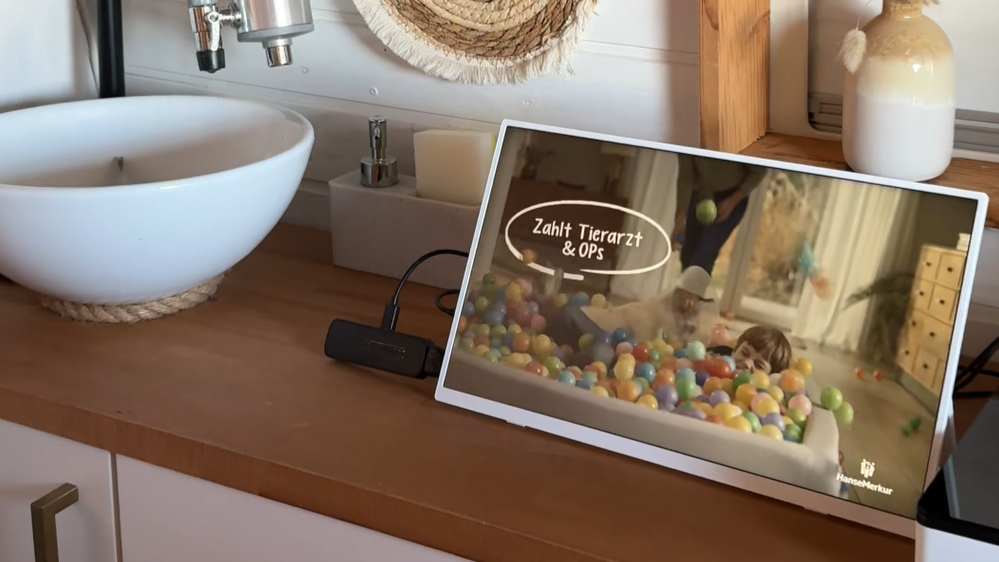
In this video, a portable monitor with Fire TV Stick is set up inside a camper van, creating a compact entertainment setup in a small space. The UPERFECT portable monitor sits on the countertop and plays video content, showing how a portable display can double as a convenient screen for relaxing during a trip.
This setup is especially useful for van life and camping, where space matters and a full-size television may not be practical. With a compatible TV stick, a suitable power supply, and an internet connection, a portable monitor can provide a flexible way to stream movies and shows while traveling.
Before creating your own setup, check the monitor's video input, the TV stick's power requirements, and your audio options. Depending on the available ports, you may need an HDMI adapter or cable to connect the devices.
What You Need for a Successful Connection
Most setups require four things:
- A compatible portable monitor:It should have an HDMI input or a video input that can accept the signal through a supported adapter.
- A streaming TV stick:The device should output video through HDMI or another connection compatible with the monitor.
- Separate power sources:The TV stick and portable monitor may each need their own power supply.
- Internet access:A Wi-Fi connection is generally needed to stream online content, although some locally stored media may work without it.
You may also need an HDMI adapter, an extension cable, or an external audio device, depending on your equipment.
What Do You Need to Connect a TV Stick to a Portable Monitor?
Before connecting the devices, check their ports and power requirements. A little preparation can prevent common problems such as a blank screen, intermittent signal, or missing audio.
A Portable Monitor with the Right Video Input
Many portable monitors include a Mini HDMI port, while some models use a full-size HDMI input. A TV stick typically has a full-size HDMI plug, so the physical connection may require a compatible Mini HDMI adapter or cable.
Check the monitor's manual to confirm which port supports video input. A USB-C port is not automatically compatible with every HDMI source. USB-C video input depends on the monitor's supported signal types and the adapter or conversion hardware used.
A Power Supply for Each Device

A portable monitor and a TV stick are separate electronic devices, and both may need power.
Many TV sticks receive power through a USB cable connected to a compatible power adapter. Portable monitors may draw power from a USB-C port or a dedicated power adapter, depending on the model.
Do not assume that a monitor's USB port can provide sufficient power for a TV stick. If the streaming device restarts, disconnects, or fails to boot, try its recommended power adapter.
An HDMI Adapter or Cable
If the TV stick's HDMI plug does not fit the monitor's input, use an adapter or cable designed for the specific ports involved.
For example, a TV stick with a full-size HDMI plug can connect to a monitor with a Mini HDMI input through a compatible full-size HDMI-to-Mini HDMI adapter or cable. Check the adapter's connector direction and supported video capabilities before purchasing it.
Wi-Fi and a Remote Control
Most streaming TV sticks require Wi-Fi to access online services. Set up your network and streaming accounts according to the device manufacturer's instructions.
Keep the remote control nearby, too. Even if the portable monitor supports touch input, that does not mean it can control the streaming device's interface.
How to Connect a TV Stick to a Portable Monitor: Step-by-Step
Follow these steps to set up your streaming display.
Step 1: Identify the Ports
Locate the HDMI input on your portable monitor and the HDMI plug on your TV stick. If the connectors differ, choose a compatible adapter or cable.
If your monitor has multiple USB-C ports, consult its manual to identify the power input and any ports that support video. A USB-C power port alone cannot necessarily receive a video signal.
Step 2: Connect the TV Stick to the Monitor
Insert the TV stick into the monitor's HDMI input. If the stick is too large for the port, connect it through the appropriate HDMI adapter or cable.
Avoid forcing the connector into the port. Make sure the adapter fits securely and does not place excessive strain on the monitor's connection.
Step 3: Power Both Devices
Connect the portable monitor to its recommended power source. Then power the TV stick using the method specified by its manufacturer.
If the monitor has a built-in battery, make sure it has sufficient charge. For a stable streaming session, using the recommended external power supply may be preferable.
Step 4: Select the Correct Input
Turn on the monitor and use its menu buttons to select the HDMI input connected to the TV stick.
If the monitor has more than one video input, confirm that you have selected the correct one. Give the streaming device time to start up.
Step 5: Complete the Streaming Device Setup
Use the TV stick's remote control to follow the on-screen instructions. Connect to Wi-Fi, sign in to your account if required, and open a streaming app.
If the display remains blank, check the connections and power supplies before assuming the devices are incompatible.
Step 6: Test the Picture and Sound
Play a video to confirm that both the picture and audio work. Adjust the monitor's brightness and volume if available.
If the monitor has no built-in speakers or its speakers are not suitable for your setup, connect headphones, external speakers, or another supported audio device.
Real-World Example: Using an Amazon Fire TV Stick with a Portable Monitor
Can a portable monitor really replace a TV for streaming? One user-shared test offers a practical example of how this setup can work.
In a shared Fire TV Stick setup demonstration, a user connects an Amazon Fire TV Stick to a portable touchscreen monitor equipped with USB-C ports, a Mini HDMI input, a 3.5 mm audio jack, and built-in speakers.
Because the Fire TV Stick's standard HDMI plug is too large for the monitor's Mini HDMI input, the setup uses a compatible HDMI adapter. The Fire TV Stick receives power through its Micro USB connection, while the portable monitor is powered separately.
Once connected, the monitor displays streaming content, and its built-in speakers play the audio. There is one limitation, however: the touchscreen does not control the Fire TV Stick's interface in this particular setup, so the user navigates with the remote control instead.
This example highlights three things to keep in mind when building your own portable streaming setup:
- Check connector compatibility:If your monitor has a Mini HDMI input, you may need an adapter to connect a streaming stick with a standard HDMI plug.
- Power both devices properly:The streaming stick and monitor may require separate power sources for reliable operation.
- Check audio and touch functionality:A working video connection does not automatically guarantee touchscreen control, and audio performance depends on the monitor's capabilities.
The exact results may vary depending on the monitor, streaming device, adapter, and power supply. Check your equipment's specifications before connecting everything.
Will a Portable Monitor's Touchscreen Work with a TV Stick?
Not necessarily. As the example above illustrates, a portable monitor can display streaming content without allowing you to control the TV stick through its touchscreen.
The reason is that HDMI carries video and audio, but does not normally transmit touchscreen commands back to the streaming device. Touch control requires a separate compatible connection and software support, which many TV sticks do not provide for external touchscreens.
If your monitor's touchscreen is not compatible with your TV stick, you can still navigate streaming apps using the supplied remote control or a supported mobile app. Check device compatibility before relying on touchscreen control.
How to Get Audio from a TV Stick on a Portable Monitor
Picture and sound do not always work in the same way across portable monitors. Some have built-in speakers, while others provide a headphone jack or no audio output at all.
Option 1: Use the Monitor's Built-In Speakers
If your monitor includes speakers and supports audio over its HDMI input, sound may play automatically when the TV stick is connected.
If there is no sound, check the monitor's volume settings and the streaming device's audio settings. Also verify that the content is not muted and that the selected audio format is supported.
Option 2: Connect Headphones or External Speakers
If the monitor has a 3.5 mm audio output, you may be able to connect wired headphones or compatible external speakers. Another option is a supported audio device connected through the streaming device or a compatible audio adapter.
The right method depends on the available ports and how the streaming device routes audio. Check the manuals for both devices if you are unsure.
Option 3: Use Bluetooth Audio if Supported
Some streaming devices support Bluetooth headphones or speakers. If your TV stick supports Bluetooth audio, you can usually pair an audio device through its settings.
Bluetooth availability and supported audio devices vary by model. Wireless audio can also introduce a small delay, which may be noticeable when watching video.
What If the TV Stick and Portable Monitor Have Different Ports?
Port differences are common, but the right adapter can often solve the problem. The key is to distinguish between a connector that physically fits and one that can actually carry the required video signal.
|
Monitor input |
What to check |
|
Full-size HDMI |
A TV stick with a full-size HDMI plug may connect directly. |
|
Mini HDMI |
Use a compatible full-size HDMI-to-Mini HDMI adapter or cable. |
|
USB-C |
Confirm that the monitor supports the required video input and use compatible conversion hardware if needed. |
|
DisplayPort |
Check whether the monitor accepts the source signal through an appropriate HDMI-to-DisplayPort converter. Conversion direction matters. |
|
No compatible video input |
A simple passive cable may not be enough. Check whether a supported converter or another display is required. |
HDMI to Mini HDMI
This is a common solution when the monitor has a Mini HDMI input. Make sure the adapter connects the TV stick's HDMI output to the monitor's video input.
HDMI to USB-C
This connection is more complicated than using a basic USB-C cable. Many portable monitors receive video through USB-C using DisplayPort Alternate Mode, while an HDMI TV stick outputs an HDMI signal.
A compatible active HDMI-to-USB-C video converter may be required. A generic USB-C-to-HDMI adapter often works in the opposite direction, from a USB-C video source to an HDMI display, so it may not work for this setup.
HDMI to DisplayPort
If your monitor accepts DisplayPort rather than HDMI, check the converter's supported direction. An HDMI source connected to a DisplayPort display may require an active converter with appropriate power, rather than a simple cable.
When possible, choosing a monitor with a compatible HDMI input is the simplest option.
Common Problems When Connecting a TV Stick to a Portable Monitor
Even when two devices should be compatible, the initial setup may not work perfectly. Use the following checks to narrow down the cause.
Problem 1: The Monitor Shows No Signal
Try these steps:
- Confirm that the monitor is switched on and set to the correct input.
- Check that the HDMI connector and any adapter are securely attached.
- Power the TV stick using its recommended power supply.
- Restart both devices.
- Test the TV stick with another compatible display, if available.
If the stick works with another screen but not the portable monitor, check the monitor's supported resolutions, signal requirements, and compatibility with the source device.
Problem 2: The Screen Turns Off or the TV Stick Keeps Restarting
An unstable power supply can cause intermittent operation. A TV stick may draw more power than a monitor's USB port can reliably provide, especially during startup or demanding streaming tasks.
Use the power adapter recommended for the TV stick and ensure the monitor has adequate power. If the issue continues, test the devices with separate, suitable power sources.
Problem 3: The Picture Works but There Is No Sound
Check whether the monitor has built-in speakers and supports audio through the selected input. Raise the monitor's volume, check the TV stick's audio settings, and disconnect any unintended Bluetooth audio device.
If the monitor has no speakers, connect compatible headphones or external speakers through an available audio output or a supported alternative.
Problem 4: The Image Looks Blurry or Does Not Fill the Screen
The TV stick may output a resolution or refresh rate that differs from the monitor's native resolution. Check the streaming device's display settings and choose a supported output mode.
Some content may also have black bars because of its aspect ratio. Black bars do not necessarily indicate a compatibility problem.
Problem 5: A Streaming App Shows a Black Screen
Some protected video content uses HDCP, a digital content protection system. If the monitor, adapter, or converter does not support the required HDCP version, protected content may fail to display even when the streaming interface appears normally.
Check the specifications of the monitor and any adapter or converter. Avoid assuming that every HDMI adapter supports every protected-content format.
Problem 6: The TV Stick Disconnects Intermittently
Intermittent disconnections can result from loose connectors, insufficient power, a faulty adapter, or an unstable wireless network.
Secure the physical connections, use the recommended power supplies, and test with another compatible HDMI adapter if necessary. If the interface works but streaming buffers, check your
Share:
Best Portable Monitors for Samsung DeX (2026): A Truly Mobile Setup