

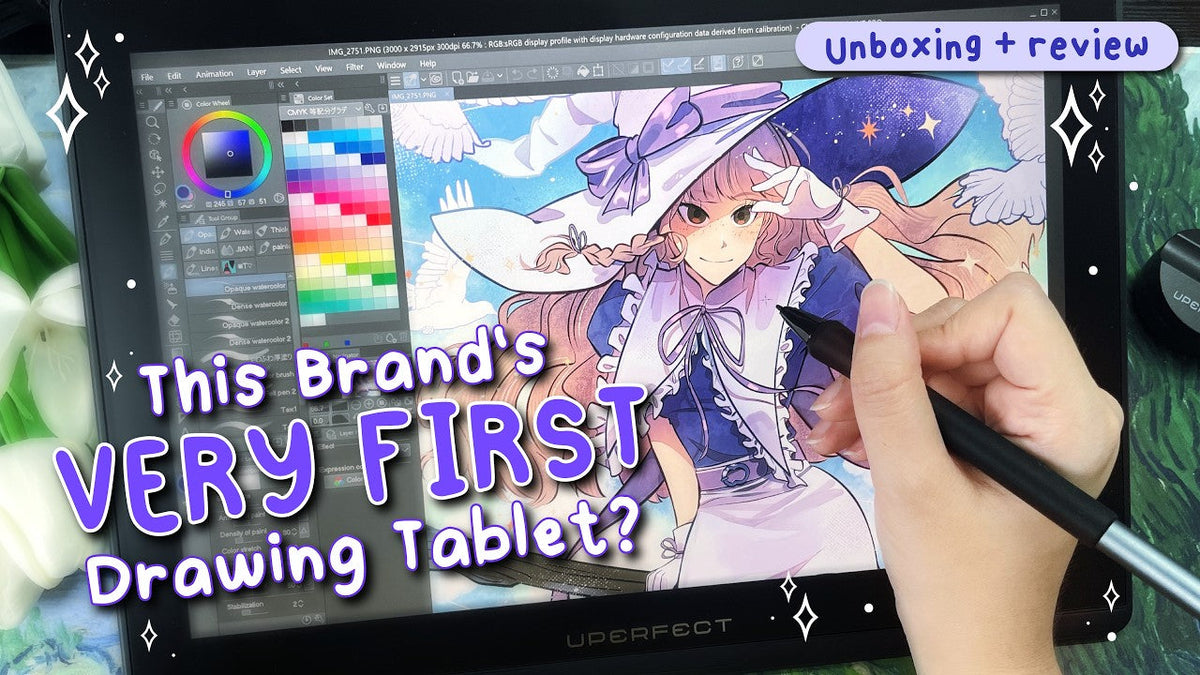
What happens when a portable monitor brand makes a drawing tablet? Let's find out. So UPERFECT is a brand that makes portable monitors, the type that you take out with you for gaming or for work or to extend your workspace, like extend your monitors for your PC or your laptop, and they made their very first, drawing tablet and they asked me to review it and I thought that was so interesting. So, I said yes. Since they're a brand that really focuses on just making monitors and screens and stuff, I really want to see if this drawing tablet has a screen quality that's different from other brands. So, let's unbox this and check it out.
What's Inside the Box


So, here it is, and opening it up, I was first met with this piece of paper, which is a pen display color calibration factory report, which is so fitting of a monitor company. It shows details like the model, the measurement condition like color, gamma, color, gamma, input signal, measuring device, and all that stuff. And I am not knowledgeable enough in this, so I will put it to the side, but to anyone who has this knowledge, I think you would be really interested in it.
And here's the tablet. It's a 14-inch QLED tablet. It's pretty light and not that heavy and comes with these stands at the back that are built in. I'll put this to the side for now.
Next up, we've got the manual, and we got a cleaning cloth for the screen.
Next is the pen and the pen holder. The pen is wrapped in this rubber, which feels kind of velvety. It's nice and light, and feels really nice to the touch. Also comes with two side buttons.
And here's the pen stand. And much like other brands, you can twist it to open and there's extra nibs.
And there are two USB-C cords. One is for the adapter for power, it says right here for power only. The other cord is an all in one USB-C cord where you just use just this one cord to plug into your device and you'll be able to use the screen tablet.
Next is the power adapter for the cord that I just showed earlier, and also another cord in case. You don't have a USB-C port, much like my PC. I don't have a USB-C port on my PC, so I'm going to have to use this cord right here. There's one that goes out to HDMI, USB-A, and a USB-C for power.
And that's it. Let me just flip it inside out to make sure that it didn't miss anything. And here's the drawing tablet.
Design and Size
The 14-Inch Size

It feels really nice. I really like the stand right here. It has a really nice angle. Now, let's test this out. So here it is. This is a 14 inch size tablet and I think it's really a perfect size for my desk. My desk is actually really small. I don't have a lot of space to put stuff on like this, what you see in the video, this is as much space that I have. On the sides, it's just like all the stuff that I have like for art. So, I think the size is really good for me.
If you need like a quick comparison to like really visualize what 14 inches is here. Here's a ruler. So, when they measure the sizes of this, it goes diagonally like this. So, this is 14 inches. It goes up like this, that's 1213, 14, so roughly like that. But you can just sort of compare the size with this ruler, including like this extended bit. It's roughly like a foot wide for the entire device, not just the screen.
The Anti-Glare Screen

It's got an anti-glare film on it. You can see how It's blurring the light that I have up here. You can't really see my reflection. There's like my room light. It's, it's blurring everything which is really nice because light glares can really mess with how you see the screen and personally, I really prefer this type of screens.
The screen does feel Kind of like really smooth and velvety. I really like it actually.
Ports, Power, and Connectivity

Ports and Power
So, the tablet doesn't have any buttons aside from just the power button right here, and there's two slots for the power.
Also, it comes with a little stand. I actually really like this. It's built in. this makes it really portable actually. So just flip these up. And then put this down and it comes up to an angle that's just enough for drawing comfortably. But if you want it to be higher, I think you can just prop it up with like a couple of books maybe, but this height does feel really nice.
Also, you can see that there's two ports right here. There's one for power and one to connect into the piece. or laptop that you have.
USB-C and Connection Options
So, these types of monitor drawing tablets require a lot of power, which is why there's one port that goes to an outlet and one that goes into your system.
But they came with two options here. Newer tablets have the ability to connect with just one cord, which is a USB-C cord. You just have one. From here into your thing and you don't need to connect it to power.
And I noticed that a lot of brands, if you want the USB-C one, you would have to buy a separate cord, but for this tablet, it came included, which is super awesome.
So, as you can see here, there's the first option where these two cords have to go into the PC and one goes into the adapter and there's another option where just one USB-C goes into your PC or laptop.
And the instructions though, they show also connecting to the power outlet, but I believe that it's possible to just Only use the USB-C cable. They have a video on how to connect. So, you can reference from either this or that video.
Connecting It to a PC

So, actually, this would require just this one cord for me to use with my PC since it extends out into the three prongs. One's an HDMI, one's a USB. Those go into the PC and then there's one more that's a USB-C that goes into the adapter.
But I don't have an outlet that's close enough to my PC. So, I do have an extension cord up here. I'm gonna connect that to this USB-C and then Put it through here for power and then the display up here.
Vibrant Colors and Anti-Glare Performance

So right off the bat, this looks really nice. The colors are super vibrant. It's, it's so nice like I can't really explain. It's almost like paper somehow. Maybe it's because of the artwork as well, it's really good.
It doesn't look so good because of my webcam, but I'll show you some footage of the screen since my phone has a better camera and you can see that how vibrant the colors really look.
And because of that anti-glare film that it has, I don't notice any of my lights. Reflecting from it, except if I'm like holding it in an extreme angle. Yeah, the screen does feel quite matte enough to use.
Setting Up the Drawing Tablet
Setting Up Multiple Displays in Windows

OK, let's install the driver. OK, so after you plugged it in, here's a setup that I really recommend you do if you have a Windows. So, you're gonna have two monitors. There's one which is your main, your PC and then one that's your tablet.
You can either have this extended, so you can have one monitor for drawing and the other minus up top for this one for watching YouTube. Showing art references, etc. etc.
But if you want these two to be the exact same to mirror each other just for convenience or whatever, you can just go here and then select duplicate these displays.
And I'll have a screen placed right here relative to how it is in real life. So my PC monitor is right up in front of me. I'll have it right up here, so when I drag my mouse up, it'll show up on the other screen.
Adjusting the Display Scale

Next up is the scale. So, you can see how small my cursor is on my main monitor, it's not that small and everything, all the UI here, everything looks quite small.
You can change how big everything is by scale right here. And in order for you to know which size you want, just quickly open up your art program of choice. Mine is clipped Studio Paint. So, just quickly take a good look at it, see how are the buttons too small for you? Is everything too small or too big.
For me, I think it's a little too small. So, let me try to change this. First, go up. Select number 2, which is the tablet. Gonna scale and oh it's at 150. I just had the main monitor selected.
So, it's already at 150. Let's make it up to 175. They recommend 200, but let's just slowly do some comparisons. This size is really nice. I really like the size, but let's see the recommended that they suggest.
It's really Big. This might be a little, a little too big for me, but it is a lot easier on the eyes, so you don't have to be constantly squinting, but I do like it to be a little bit smaller, so I'm going to have it at 175. And the setup is complete.
Using the UPERFECT Tablet Driver

Driver Installation and Calibration
Close this and open up UPERFECT’s tablet driver. I'll put a link in the description to download the driver and also their little tutorial video because it was really helpful in setting this up so I didn't have to figure everything out myself.
So, first up, always have to calibrate it. Go up here and then you can calibrate the cursor. This would have to be relative to where you sit, where your eye is and where your pen meets the screen.
I'm gonna be sitting, drawing right here. And press the dot. The cursor is now aligned perfectly with the pen.
Cursor and Screen Settings

Next up, they have settings for how you want to draw. I currently have my main monitor up here and then my tablet.
You could change to have your tablet control the cursor on the main screen. So now it's on the main screen, it's not down here anymore.
And you can also change it to custom areas if you want to draw only on a certain area of the screen, maybe you only want to draw on. The on like half the size or maybe just in here for whatever reason, you have that option as well.
There's also an option to spin it 180 degrees. So, you can see in the little display there, it flipped the tablet completely. So, when I move my cursor, it's in the opposite direction.
Just in case for whatever reason, you have to turn this tablet around completely just so maybe you want to have Cord the plugs on down here instead so it reaches your PC better. You have this option as well, but you won't be able to use the stand that they have.
Virtual Keyboard and Shortcut Options

Next up, they have a virtual keyboard setting. This is pretty awesome. This is if you don't have a shortcut device like I'm using and just for like quick shortcuts, here you have a virtual keyboard or a small size.
Let me pin that. Yeah, and change the function. There's a bunch of tools, switch screen, switch brush. This is super cool.
Let's just quickly take a look at what these look like. OK, so button and then more buttons, like a num pad. But I think the radio one looks really, really nice. This looks really cool.
But sadly, I don't really use these, so I'll just take them out.
Pen Settings

And finally, of course, settings for the pen. I would just prefer to keep these at default and also turn off the button functions.
I noticed that when I use pens that have buttons, I often accidentally hit the buttons and cause it to do the shortcut or whatever it's linked to. I accidentally hit the buttons a lot. I'll just turn it off. It's just a personal preference.
But if you want to change it, if you want to add a button to it, you can. You have the option to set these buttons. Lastly, just some general settings.
Pen Testing and Drawing Performance

Testing Responsiveness
Now, let's do some pen tests. So, I have currently open clips to paint and just try out the responsiveness and how the lines look right off the bat, looks really nice.
It's got a pretty fast response. The delay is like extremely minuscule, like you can notice it, but it's barely there to the point where you don't really notice it unless you're actually focusing.
Pen Pressure
I do feel like the pen pressure is pretty nice though. I think I want it to be a little bit harder. The force to reach the maximum pressure, I'll make it a little bit lighter.
Yeah, so if I want to reach like the full size like this. I don't have to use as much force. That's what that setting is for.
Line Quality

Yeah, these lines look really nice. I don't notice any sort of, you know, issues. Some pen tablets would have like a little bit of like, you know, tail flickers or issues like that with this.
I don't feel like there's any issues. The lines do look a little bit jagged. I'm not sure why. Maybe it's the pen. It's because of the pen. I forgot I had a setting on. Wait, yup, OK, this is the normal pen.
That looks much better. There's literally no issues at all. It feels nice. The screen feels really nice to draw on as well.
Screen Ripple Effect
I just sort of noticed a little bit of a ripple effect on the screen itself. When I press my hand hard onto the screen to draw like really harsh rough lines, I can see that sort of A little bit of that rippling effect.
OK, the camera does capture it. You can see it right there, just a little bit. It's causing that ripple from the force of my hand.
I don't think it's gonna cause any issues or anything much in the long run. It, it's just giving me that sort of anxiety.
Blending and Full Illustration Test

It does pretty well in the blending department. I can't really judge much right now. So far, there's barely any issues, but I will be creating a full illustration with this and I'll give you my thoughts and opinions on it as I'm drawing.
Issues Encountered During Setup
All right. So, first of all, I want to talk about the issues that I encountered while setting it up.
So, when plugging in the display, for some reason, it didn't connect immediately. It only did once I went to my main monitor and minimized a random window, which was kind of odd but it caused it to connect immediately.
Second of all, the pen pressure wasn't working in Clip Studio Paint. It wasn't working on any sort of art app, but it was working on the driver.
So, deleted the driver, restarted my PC, did the good old, turn it off and on again, reinstalled the driver and then everything worked perfectly fine.
Display and Color Quality

Display Controls
As I showed earlier, it only had one button which is the power button and no button for like any sort of built-in display settings like brightness, contrast or anything like that.
I think because like the paper I showed you earlier and how they're like a brand for specifically monitor. Everything was set to display in a specific way that they wanted to present. So, we wouldn't have to mess around with the settings.
Color Comparison
With that though, I did preview one of my artworks and did a comparison with my main monitor and my iPhone. I'm using an iPhone 12 Pro and my main monitor is an LG Ultra Gear.
And from comparing with those two, the colors from the tablet does look a little bit more saturated, but I did do another comparison with the art that I'm drawing right here and how it looks on the main monitor and there wasn't much of a difference, so it was Maybe it was with the colors of the old artwork that I was using, but I don't think this would be an issue anyway because every single screen on this planet is different.
It's going to display images with different colors and different brightnesses and such. So, I wouldn't worry too much about it for art.
Sharpness and Screen Quality
The screen does look really nice. It's a QED and I did notice that it wasn't as, I don't wanna say blurry or murky compared to other tablets. It's just something I do notice with some other screens. This one does feel a little more sharper.
Heat and Comfort While Drawing

Also, because this is a screen tablet, there's a lot of power going through it and usually these tablets would fire up like it'll heat up because of all the power that's going through it.
I noticed that this one, it does not at all. I'm not sure where the heat is. I think the heat is just like sort of evenly distributed throughout or something.
It does feel a little bit warm, but not to the point where I could noticeably feel it. Like my hand wasn't sweating. I didn't think about it while drawing. I didn't think, oh wow, this is kind of warm.
It's like only When I really put my hand flat to the surface, did I notice that it did have some warmth, but it was not something that I actively noticed. So, this is an issue that you're encountering, you're someone with like sweaty palms. This is really good. It doesn't have that much heat.
Overall Drawing Experience

Now, in drawing with this, it was really good, really nice. I like the screen. My only issue is personally with the pen. I'm just like that. So, the nibs of these pens, they're a little bit wobbly and they can move in and out. This is what causes the pen pressure.
But for me, it feels a little bit unnatural and I I wish it was a little bit stiffer, much like a pencil. So that's my, pretty much my only nitpick. It did cause a little bit of discomfort, but overall, I felt like this is a really nice tablet to draw on.
Is the UPERFECT UD14BQ for You?

So, UPERECT UD14BQ is for you? I think if you have a really small workspace like I do, this size is really good, or if you're on the go a lot, I think you can travel with this.
It's 14 inches, which is roughly the same size as most laptops, and it's actually quite thin and it comes in with a built-in stand and I Really, really like this part, the built-in stand. This is really good.
Final Thoughts on the Tablet

So, if you're looking to change your tablet, you want something that's around this size, or it's your first time getting a screen tablet, you can consider this one, the UPERFECT UD14BQ tablet.
I have links in the description for you to check it out. Let me know what you think about this tablet. Let me know if this video helps. Thank you so much again to UPERFECT for sending me this tablet to review. I personally really like it because it fits my workspace.
Share:
UPERFECT BE185CF Dual Screen Touch Monitor Reviewed by Retrotastic Gamer
UPERFECT GR14BU OLED Touchscreen Monitor Reviewed by Try Some Tech