

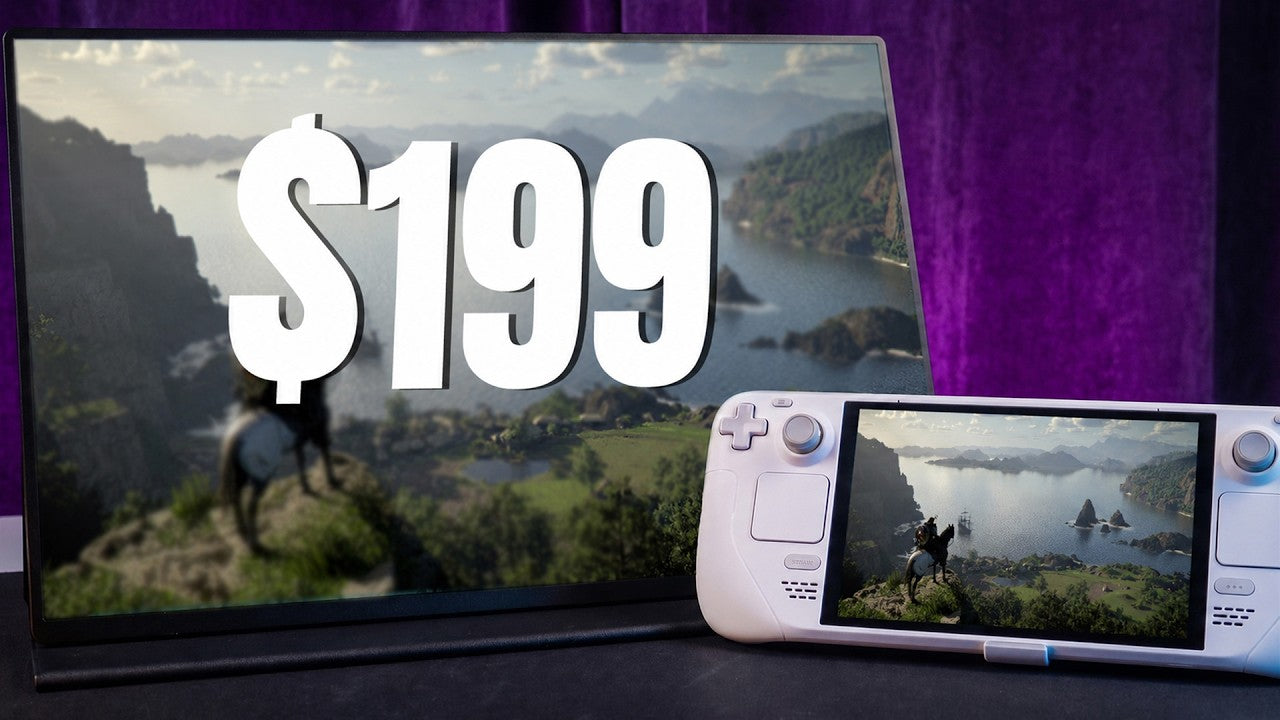
If you're a Steam deck owner and you've ever thought, I wish I had just a slightly bigger screen than this monitor is made for you. It's 16 inches, 2K resolution, and 144 Hz refresh rate, and it folds into its own case. I've been testing it with the DC for the past week, and there are some things about it that really impressed me, and one quirk that took me a while to figure it out, so let's get into it.
Disclosure
UPERFECT sent me their GR16EQ portable gaming monitor 2K 144 Hz for review, but you should know that no money was exchanged and all opinions are my own.
What's in the Box?

So, let's start with what you get in the box because I was surprised by a few of the items and the accessory situation here is pretty good for the price. You've got the monitor itself, obviously, and it comes already sitting inside this magnetic cover that doubles as a stand, which I'll get to in a second. Then you've got mini-HDMI. HDMI cable, two USB-C cables, a 20 watt charging brick, and vessel mount screws if you want to wall mount it or throw it on a monitor arm. But the thing I actually appreciated were these two little adapter pieces, one for USB-C and one for mini HDMI. They're basically right angle adapters, so instead of your cable sticking straight out the side of the monitor, it takes behind it. It's a small thing, but it makes the whole setup look cleaner. I don't know if other monitors are. Price points include this, but I think these are really cool.
Design and Build Quality

The monitor itself has a plastic vessel around the front, but the body, the back, and the sides are aluminum. It's got that cold to the touch feel. It doesn't flex when you hold it, it doesn't creak. It feels really solid. The magnetic cover is pretty great too. It's thin, but it gets the job done at both protecting the monitor and when you need to use it as a stand. You can fold it back and it clicks into one of two angles, a shallower one and a. Deeper one, and it just stays there, it doesn't wobble, it doesn't slide. In fact, it's so sturdy, you can even drop it on your lap. And then when you're done, you fold it shut, it snaps magnetically and you throw it in your bag, and the whole thing weighs under 1 kg, so it's not adding much to your carry.
Ports and Connectivity

On the ports, one side has your 3.5-millimeter audio jack, a speaker, and the buttons for the OSD. The other side has two full-featured USB-C ports and a mini-HDMI and. Second speaker on top. You also have vessel holes on the back if you need them.
Display Specifications

The panel is IPS 2560 by 1600, which is 2K at 16 by 10 aspect ratio, which is the same as the stindex screen, so the content fills it natively without having black bars. You can also adjust that aspect ratio to either 4 by 3 or 16 by 9 if you need to.
Display Quality

Now the covers on this look really good. Games with rich environments, skin tones, dark scenes. Holds up really well.
Matte Finish

Where it gets a tiny bit complicated is the matte finish. On one hand, glare resistance is really excellent. I had this thing sitting next to a window, and the difference versus a glossy screen is night and day. On the other hand, matte coatings do slightly soften the image, so if you're coming straight from the Steam Deck OLED screen, you might notice covers feel a touch more muted. It's a trade-off, and personally, I'm fine with it. I'd rather have the glare reduction. That's why. I also have an anti-glare protector on my sindex screen, but it's worth knowing this going in.
Viewing Angles
Our viewing angles are pretty solid, as you would expect from IPS. These are the best viewing angles you can expect from pretty much any LCD panel, and you can move quite a bit before the image shifts on you.
Brightness Behavior

This is the part where I want to make sure you're actually watching because it had me confused for longer than I'd like to admit. When you plug this monitor into the Steam deck using just a single USB-C cable from the monitor, To the Steamdex or no charging brick, the monitor will default to 30% brightness every single time. And if you go into the OSD, you can change it and you can set it to 100, but you can't save that value. If you unplug it and plug it back in, it's going to be back at 30% again. So none of the settings are actually being saved. And I thought this was a bug, it's like it's broken. It's not.
Why It Happens
Here's what's actually happening. When the monitor is drawing power from the Steam deck, it goes into a power. Saving mode that defaults to 30% brightness. And another thing to add, this is advertised as 450 needs of brightness, and while I can't scientifically test this, I can tell you that at 100% brightness when plugged in only to the Steam deck, it's not as bright as when you also have it plugged to that wall charger. So while it is bright enough, you will notice the difference immediately when plugged into the charger. I don't really think this is an issue. Just keep in mind if you're going to be using this with no. External power. If you're planning to use this at home and you have the capability, just make it a habit into plugging the brick. And keep in mind the included USB-C cables aren't really that long, so that might become an issue depending on where your outlet is. But you can use any USB type C cable for power. It doesn't have to be one of theirs.
Refresh Rate and VRR

So the monitor is rated for 144 Hz and it also has free sync. And here's where it actually does something that a lot of portable monitors in this space claim they do but don't really. VRR variable refresh rate actually works on Steam OS. I was able to enable it in the Steam Deck display settings without any issues. Any device that supports display port out mode over USB-C will get the same experience. Devices that don't, some docks or certain handhelds, they won't get VRR enabled.
USB-C vs Mini HDMI

Now one thing to know, if you want the full 144 Hz, use USB-C. The Mini HDMI caps out at 130 Hz at this resolution. It's still fast, but If you're chasing every frame, USB-C is the way to go.
Gaming Performance

Now actually hitting 144 Hz or 144 FPS on the Steam deck depends entirely on what you're playing. Something like Stardew Valley or Vampire Survivors or Megabong, easy. You sit at 144 Hz, no problem. However, a heavier game at native 1600 resolution, the Steam deck will struggle, and you're looking at more like 30 to 50 FPS depending on the title. The sweet spot for demanding games is probably. 1080p or leave it at 800p, which is the default in deck resolution, but it still looks good on a 16-inch screen, and then you can push native resolution for lighter stuff, whereas Steam deck has more headroom.
HDR Support
The monitor also supports HDR, and you can send it to auto. Or use its own preset. A just means that it's on. From there on, you need to use the game's HDR settings, if it has one to configure the colors you want. I find that HDR on the Steam deck is a hard thing to adjust, so I honestly don't use it that much, but it's here and it works if you need it. The monitor's OSD doesn't let you tweak HDR parameters directly, so you're working with whatever the game or Steam OS gives you.
Power Consumption
Now this monitor doesn't have a battery. In it, so it draws power from whatever you plug it in or using the wall charger. The monitor draws between 5 and 6.5 watts from the Steam deck when it's running off just the USB-C cable. And this is at the max resolution and max hertz. The included charging brick is 20 watts. If you plug in the brick, the monitor takes its 5 to 6 watts, and the remaining roughly 14 watts goes to the Steam deck.
Charging Behavior

Here's the thing though. In a demanding game, the Steam deck itself is already pulling anywhere from 20 to 20. 4 watts. So even with the brick connected, you might be in a slow discharge situation on heavier titles because the total power going in is less than what the deck is consuming. It will say that the stein deck is charging, but that's not true. In lighter games where the deck pulls less, you'll actually be charging the stein deck. That's not a deal breaker, it's just something to factor in if you're playing a long session, and I think it's 6 watts for a monitor, that's actually a really good power draw.
Speakers and Audio
Now this thing has 2 speakers on each side. They work, they're OK. I think they're on par with the Steindex speakers. They are pretty loud, at least in terms of volume. They are pretty great. For the quality, it's probably not the best I've heard, but this is a small package, and for what it is, I think they're pretty great. The 3.5 millimeter audio jack is there if you want to plug in headphones or external speakers.
Price and Overall Value
The UPERFECT GR16EQ 2K 144 Hz costs $199 and it's a well-made portable monitor specifically for Steamdeck owners. 16 by 10 aspect ratio matches the degatively valuable refresh rate actually works on Steam Wess, which puts it ahead of a lot of the competition. The stand is solid, the build quality is better than the price suggests, and the included accessories cover everything you need to get going. The brightness situation is probably the main thing to wrap your head around. You need the charging brick plugged in to get the full brightness and save your settings. Once you do know that, it stops being a problem, and if you're always near a power outlet, it's a non-issue.

Who Is This Monitor For?
I think Steamdeck owners who want a bigger screen at home or when traveling without calling around a traditional monitor. It's not really trying to be a desktop replacement. It's trying to be a really good companion screen for a handheld, and at that, it does its job well. It also works with any device that supports USB-CDP delivery like my Odin 3 or my wife's iPhone 17. And one more thing worth mentioning, if you're keeping an eye on the Steam machine, this Could be a really natural pairing for that too. A compact 2K 144 Hz monitor that folds into its own case, it sits on its own stand, and connects via a single USB-C cable or via HDMI. I think that's a pretty compelling portable PC setup, and I'll be testing it with the Steam machine for sure when that comes up. I can just toss both of them in a bag, get some controllers, and go to a friend, and we can have a great time.
UPERFECT were kind enough to provide you guys with some. Discount codes. You can use Steamflow30, which gets you $30 off on orders over $150 and Steamflow40 which gets you $40 off on orders above $200.
Share:
UPERFECT GR19BU (UColor Apex) 19 Inch 4K Gaming Monitor reviewed by Take2Play
UPERFECT GR185BF 18.5 Inch NxtLED™ Gaming Monitor reviewed by Pete Talks Tech