




Why There Is No HDMI Signal From Your Device?
The “no signal” display from HDMI errors can be really frustrating, especially when the setup is adequately connected. While it is a common issue, many users fail to realize that the source device is regularly a culprit of this incidence. Hence, it is ideal to make a few basic checks before assuming the monitor is faulty.
Sometimes, the problem arises from the display being connected to the wrong HDMI input, receiving signals from the wrong source. Other times, the HDMI cable might just be faulty. In this article, we’ll explore all of the quick fixes, and how it can save you time while getting your display back up and running. For a more comprehensive and systematic guide to diagnosing “no signal” issues, you can also check this article.
How HDMI Sends Video Signals to a Display
HDMI is a connection system designed to transmit high-quality content from one device to another. With proper connection, this process is almost instant and unnoticeable. However, there are times when your monitor is left with nothing to show, especially when something else interrupts it.
The Basic HDMI Signal Path
Like every media connection, HDMI follows a clear path that plays a role in transmitting the content. Here are the devices involved in HDMI signal path:
- Device output (laptop, console, graphics card): This is the source device where the content signal originates. With the help of the GPU, the device output prepares the video data for transmission.
- HDMI port:The port is the entryway that connects the device to the cable. Technically, the port converts the internal content data into a different format that can be transmitted.
- HDMI cable:This is the physical bridge that carries the already converted media signal from the source device to the visual system. While it’s a simple process, this device must maintain a stable connection during this process.
- Monitor or TV input: This is the last device in the transmission chain. As the receiving end of the setup, the monitor receives the signal through the HDMI input and processes the data into visible pixels and sound.
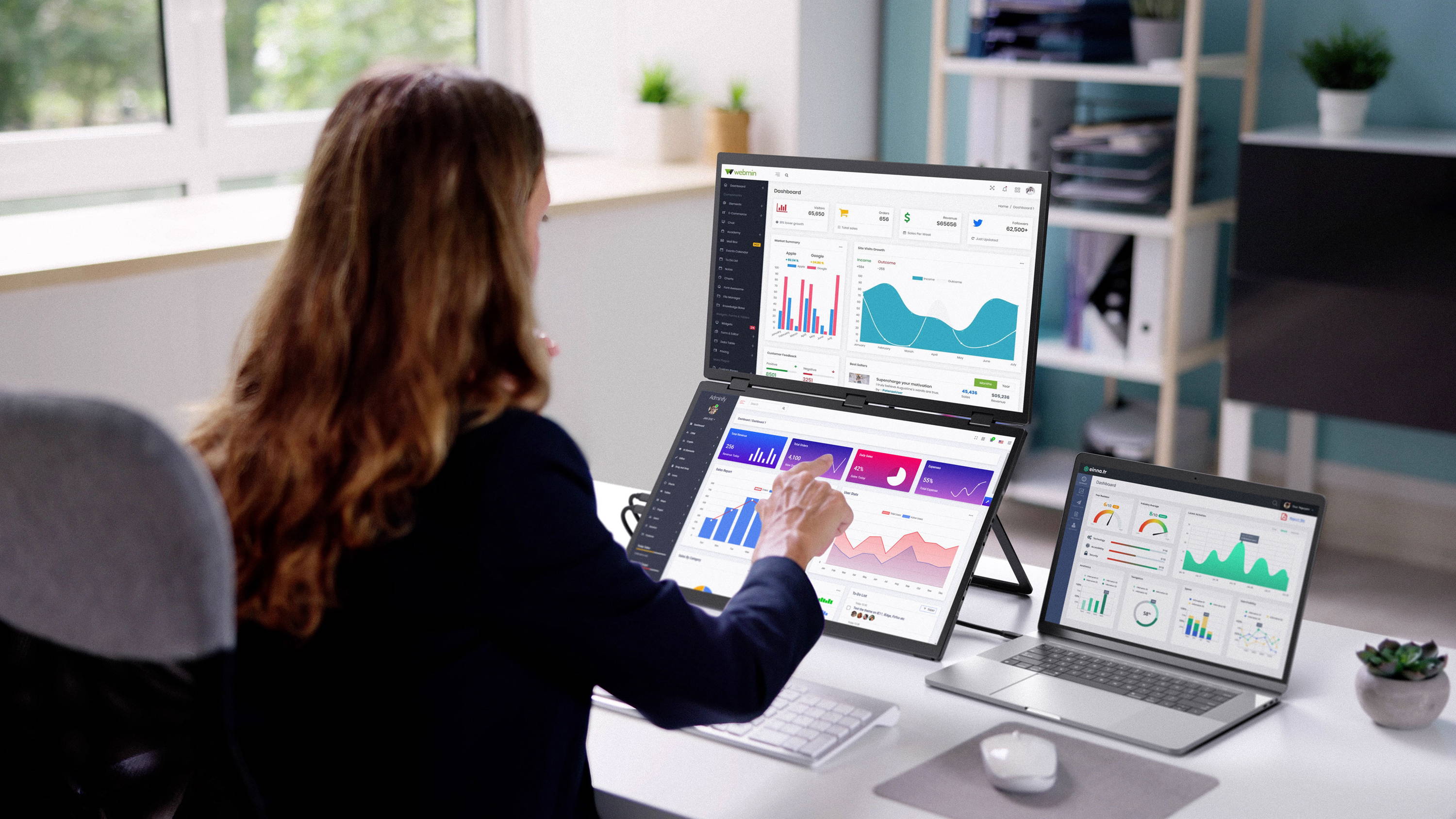
After the video signal is generated by the source device, the digital data is moved through the HDMI port. Then the signal is transmitted through the HDMI cable at high speed. Once it gets to the visual system, the HDMI input passes the data to the screen’s internal processor. It is at this point that the information is interpreted and displayed as the pixels you see.
EDID Communication and Signal Negotiation
One of the most important processes in HDMI connection is the quick conversation between the source device and the visual system. This conversation known as signal negotiation, usually happens right before anything pops up on screen.
During this process, the source device identifies the visual system and receives data revealing the capabilities of the connected device. This process is known as the EDID (Extended Display Identification Data) handshake process.
In signal negotiation, the display reports its supported resolutions and refresh rates. The user’s monitor transmits information about what it can handle, so the source device knows how to transmit digital signals within its limits.
Meanwhile, the device selects a compatible video output. At this point, the source device uses the compatibility information from EDID to choose the best possible visual settings that match the monitor’s capabilities.
If this communication is unsuccessful, the visual system may show a HDMI “no signal” message. In the end, no video signal is transmitted.
Common Reasons for No HDMI Signal From a Device
Sometimes, the HDMI “no signal” message can come down to how the source device is originally configured to transmit data signals to the monitor. Oftentimes, modern devices are designed to support multiple display modes. This can cause mix-up, where digital signals are not directed where you expect.
Incorrect Display Output Settings
There are times where “No HDMI signal” message is a product of wrong output connection. It happens when the source device sends the video signal to the wrong output. This is common for source devices with multiple display modes.
This “no signal” message could be because the HDMI port is not actively enabled in the settings of the source device. If the output settings on the source device are turned off, the digital signal cannot be successfully transmitted.
Unsupported Resolution Or Refresh Rate
Not every HDMI connection issue is a result of settings and configuration. Sometimes, the type and mode of signal can be problematic. Since visual systems are designed with specifications, they cannot handle signals outside their limit.
If the source device is set to a particular resolution and refresh rate that is beyond the monitor’s capability, the visual system may reject the digital signal. In cases where both the source device and monitor support the same format, incorrect combinations during EDID handshake can affect display.
Graphics Driver Or Firmware Issues
Beyond configuration and compatibility issues, the “No signal” problem can sometimes be caused by software issues in the source device. Apart from the bandwidth limit, graphics drivers, firmware and other display software are responsible for managing how video signals are processed. Here are some software issues that can affect HDMI connection:
- Outdated graphics drivers
- Software or firmware errors affecting video output.
Why HDMI Port May Stop Working
There are rare cases where the “No signal” message is a result of a malfunctioning physical port. Since HDMI ports are frequently used for connection, they can easily wear out over time.
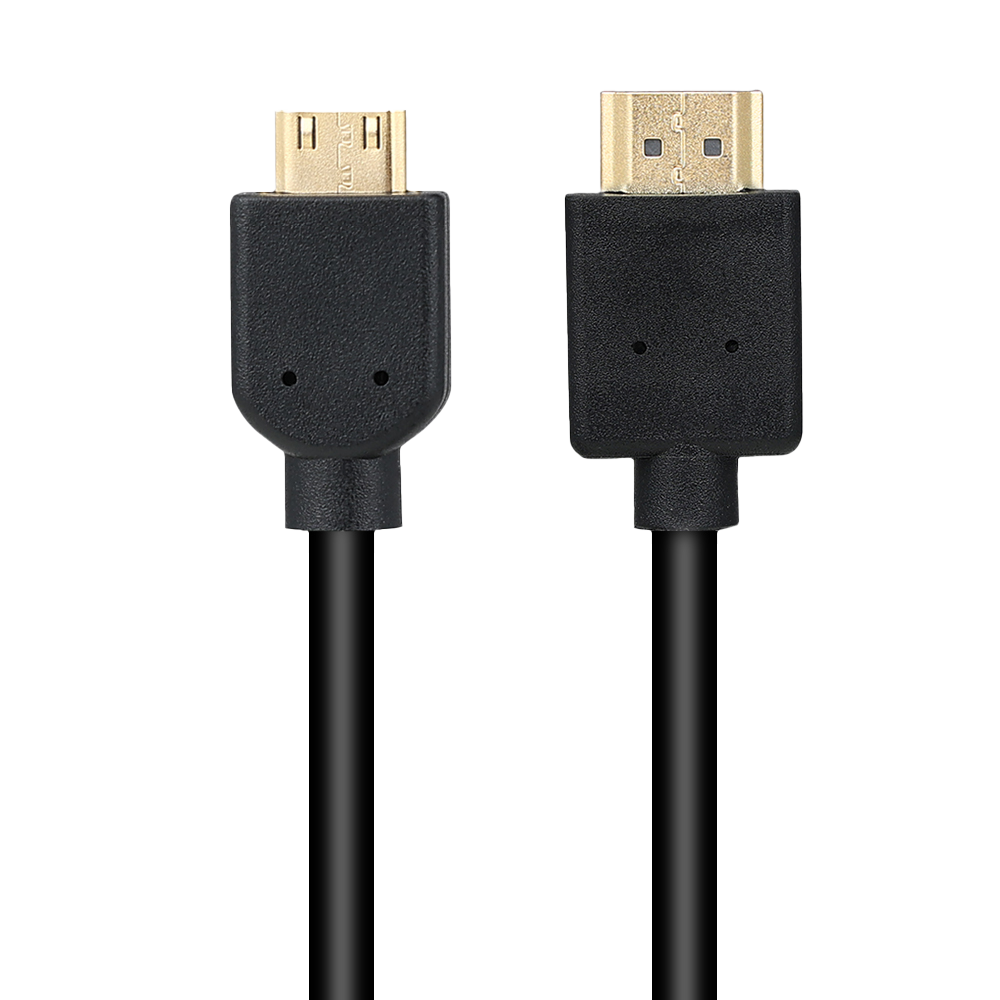
Physical Damage Or Wear
Here are some minor damages that can prevent HDMI signal from proper transmission:
- Bent pins
- Loose HDMI connectors
- Worn ports after long-term use.
Internal Hardware Problems
As much as external hardware plays a big part in HDMI connection, internal hardware can also affect the connection process. For instance, problems with the integrated GPU can stop the HDMI output from properly functioning. Even when the GPU is properly functioning, issues with signal routing can affect HDMI connection.
Compatibility Limitations
Over the years, HDMI standards have evolved with the introduction of newer features that may not be supported by older ports. Visual systems that use older versions of HDMI may not properly handle digital signals from newer source devices.
Moreover, high resolution signals always require higher bandwidth for transmission. If the HDMI cable cannot handle the data rate, the visual system may not receive the digital signal.

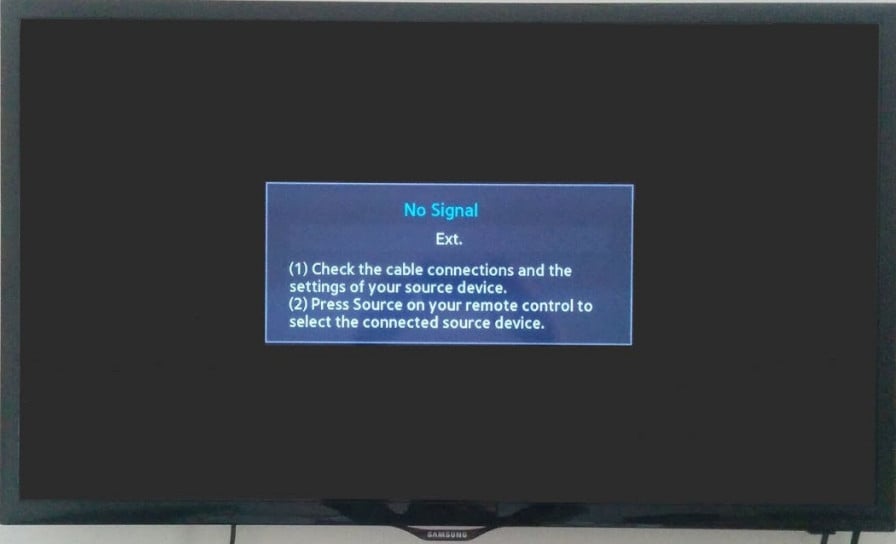
Image credit: appuals
Do HDMI Cables Fail Over Time?
Above all, HDMI cables can become damaged over time. Frequent plugging and unplugging can break internal wires after multiple use. The damage to cable is usually noticed with flickering images or intermittent signal loss. Since HDMI cables are invisible connectors, people often assume the monitor, TV, or device is at fault. In reality, a worn or damaged cable can mimic device failure, making it one of the first things to check during troubleshooting.
Conclusion
Overall, HDMI “No signal” messages are a common source of frustration for users. More often than not, the real issue emanates from certain components related to the source device. Nevertheless, simple functionality checks, such as verifying inputs, testing cables, or restarting devices, often resolve the problem quickly. Understanding how HDMI connections work helps users to pinpoint where a signal is breaking.





Leave a comment