

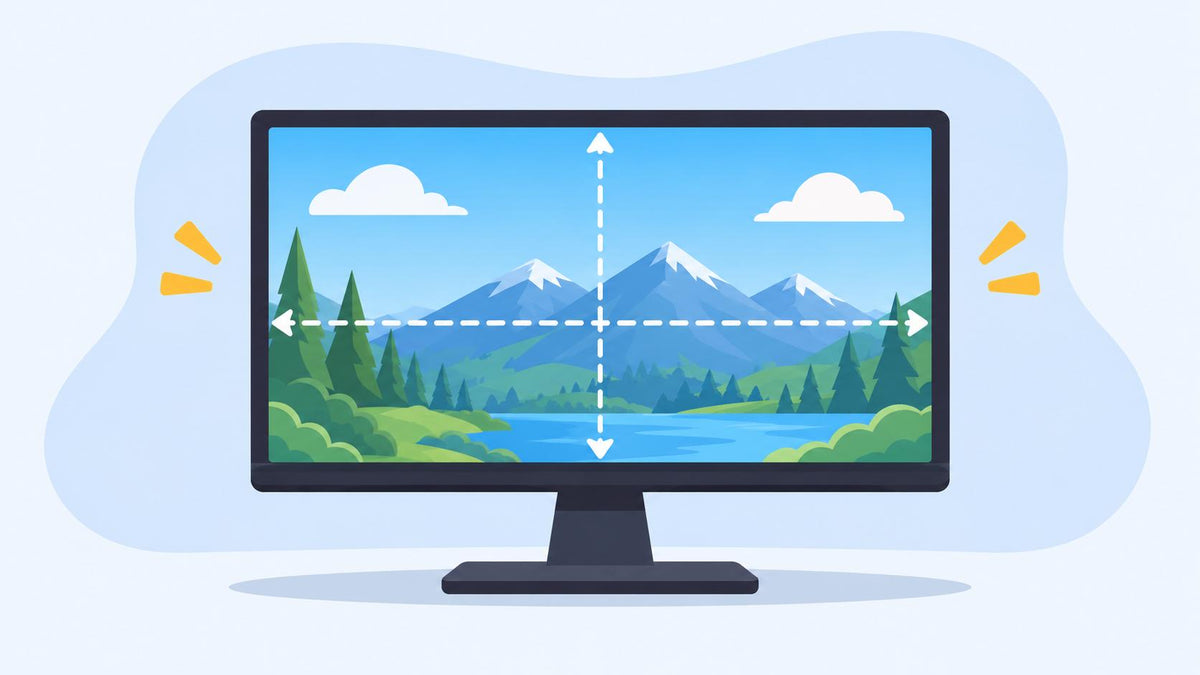
When choosing a monitor, screen size and resolution are usually the first specifications people look at. But there's another detail that can make a noticeable difference to your viewing experience: aspect ratio.
Why do two 27-inch monitors sometimes have different widths and heights? Why do 1920 × 1080 and 2560 × 1440 both count as 16:9? And how can you tell whether your monitor is 16:9, 16:10, or 21:9?
The good news is that you don't need any special equipment to figure it out. In most cases, your monitor's native resolution is all you need. Let's break down how aspect ratios work and how to calculate yours.
1. What Is Monitor Aspect Ratio?
Understanding Width-to-Height Ratio
A monitor's aspect ratio describes the proportional relationship between the width and height of its display area. It's usually written as two numbers separated by a colon, such as 16:9 or 16:10.
For example, a 16:9 display is 16 units wide for every 9 units of height. A 16:10 display is slightly taller relative to its width, while a 21:9 display has a much wider shape.
Aspect ratio describes the screen's shape, not how large or sharp it is. That's an important distinction when comparing monitors.
Aspect Ratio vs. Resolution vs. Screen Size

These three specifications are related, but they don't mean the same thing.
|
Specification |
What It Tells You |
Example |
|
Aspect Ratio |
The proportional relationship between width and height |
16:9 |
|
Resolution |
The number of pixels displayed horizontally and vertically |
1920 × 1080 |
|
Screen Size |
The physical diagonal measurement of the display |
27 inches |
For a closer look at the difference between physical screen dimensions and display proportions, see our guide on how to measure monitor size.
Why Do Two 27-Inch Monitors Have Different Widths and Heights?
Here's something that can be a little confusing: two monitors can both be 27 inches but have noticeably different shapes.
That's because the 27-inch measurement refers to the screen's diagonal, not its width or height. The aspect ratio determines how that diagonal is divided between the two dimensions.
For example, let's compare two 27-inch monitors:
|
Aspect Ratio |
Approx. Width |
Approx. Height |
|
16:9 |
23.53 inches |
13.24 inches |
|
16:10 |
22.91 inches |
14.32 inches |
As you can see, the 16:10 monitor is taller but slightly narrower than the 16:9 model, even though both have the same diagonal size.
You can also calculate these dimensions using the following formulas:
- Width= Diagonal × Width Ratio ÷ √(Width Ratio² + Height Ratio²)
- Height= Diagonal × Height Ratio ÷ √(Width Ratio² + Height Ratio²)
This is why checking the aspect ratio is useful when comparing monitors for a desk setup. A larger diagonal doesn't necessarily mean a wider display.
2. How to Determine Monitor Aspect Ratio Using Resolution

The easiest way to identify your monitor's aspect ratio is to check its native resolution. You can then simplify the horizontal and vertical pixel counts into their smallest whole-number ratio.
Step 1: Find Your Monitor's Native Resolution
First, check the resolution your computer is using.
On Windows:
- Right-click your desktop and select Display settings.
- Find the Display resolution section.
- Check the resolution shown for your monitor.
On macOS:
- Open System Settings.
- Select Displays.
- Check the available resolution settings for your connected display.
For the most accurate result, use the monitor's native resolution, which is the resolution its panel is designed to display. A temporary lower resolution may produce a different ratio or cause the image to look less sharp.
Step 2: Apply the Aspect Ratio Formula
Once you have the resolution, use this simple formula:
Aspect Ratio = Horizontal Pixels : Vertical Pixels
For example, if your monitor has a resolution of 1920 × 1080, its aspect ratio starts as 1920:1080.
But that's not the final format yet. You'll need to simplify the numbers.
Step 3: Simplify the Ratio Using the Greatest Common Divisor
To reduce a resolution to its simplest ratio, divide both numbers by their greatest common divisor (GCD). This is the largest whole number that divides both values evenly.
Let's use 1920 × 1080 as an example:
- Horizontal pixels: 1920
- Vertical pixels: 1080
- Greatest common divisor: 120
Divide both numbers by 120:
- 1920 ÷ 120 = 16
- 1080 ÷ 120 = 9
So, the monitor's aspect ratio is 16:9.
You can apply the same method to other resolutions, too:
|
Resolution |
Simplified Aspect Ratio |
|
1920 × 1080 |
16:9 |
|
2560 × 1440 |
16:9 |
|
3840 × 2160 |
16:9 |
|
1920 × 1200 |
16:10 |
|
2560 × 1600 |
16:10 |
Why Do 1920 × 1080 and 2560 × 1440 Both Have a 16:9 Aspect Ratio?
At first glance, these resolutions look quite different. One has 1920 horizontal pixels, while the other has 2560. So why do they share the same aspect ratio?
It's simply because their width-to-height proportions are identical.
1920 × 1080 simplifies to 16:9, and 2560 × 1440 also simplifies to 16:9. The second resolution has more pixels overall, but the screen shape remains the same.
In practical terms, 1920 × 1080 is Full HD (FHD), while 2560 × 1440 is Quad HD (QHD). The latter can display more detail, but it doesn't make the screen wider or change its proportions.
Use an Online Aspect Ratio Calculator
If you don't feel like working through the numbers yourself, an online calculator can do the math in seconds.
For example, the Owl3D Aspect Ratio Calculator lets you enter a width and height to find the simplified ratio. The ScreenOfColors Aspect Ratio Calculator offers a similar way to calculate and compare common display formats.
Just enter your monitor's horizontal and vertical resolution, and the tool will return the corresponding aspect ratio. Remember to use the native resolution for the most reliable result.
3. How to Determine Aspect Ratio Without Resolution Information

What if you can't find your monitor's resolution, or you're checking a display without a computer connected to it?
You can estimate its aspect ratio by measuring the active display area instead.
Measure the Active Display Area
For this method, you'll need a ruler or measuring tape.
- Measure the visible screen width from left to right.
- Measure the visible screen height from top to bottom.
- Make sure you measure the display area only, excluding the bezel.
- Divide the width by the height to get the decimal ratio.
For example, if the visible screen measures approximately 23.5 inches wide and 13.2 inches high:
23.5 ÷ 13.2 ≈ 1.78
A decimal ratio of approximately 1.78:1 is equivalent to 16:9.
This method works for most flat displays, although small measurement differences can affect the result. If you can access the native resolution, calculating the ratio from pixels is generally more accurate.
How to Measure a Curved Monitor's Aspect Ratio
Curved monitors need a little extra care when measuring their display area.
Don't follow the curved surface with your measuring tape to determine the width. Instead, measure the horizontal distance from one side of the visible display to the other in a straight line, as viewed from the front. Then measure the vertical height in the same way.
Use these two measurements to calculate the ratio. However, because the curved surface can make physical measurements less straightforward, checking the monitor's native resolution is still the better option.
4. Common Monitor Aspect Ratios Explained
Now that you know how to calculate the ratio, let's look at the formats you're most likely to encounter.
|
Aspect Ratio |
Example Resolution |
Common Applications |
|
4:3 |
1024 × 768 |
Older monitors and legacy applications |
|
16:9 |
1920 × 1080 |
General computing, gaming, and video |
|
16:10 |
1920 × 1200 |
Productivity and office work |
|
21:9 |
2560 × 1080 |
Ultrawide gaming and multitasking |
|
32:9 |
3840 × 1080 |
Super ultrawide workspaces |
16:9 vs. 16:10
Both formats are common, but they offer slightly different viewing experiences.
A 16:9 monitor is the familiar widescreen format used for most videos, games, and everyday computing. It's a practical choice if you want broad compatibility with digital content.
A 16:10 monitor provides more vertical screen space relative to its width. That extra room can be useful when reading documents, working with spreadsheets, browsing long webpages, or writing code.
21:9 vs. 32:9
If you need more horizontal workspace, ultrawide monitors are worth considering.
A 21:9 monitor offers a wider viewing area than a standard 16:9 display. It's useful for multitasking, video editing timelines, and games that support ultrawide resolutions.
A 32:9 monitor takes this further, offering an extremely wide workspace that can feel similar to placing two widescreen displays side by side.
One detail worth knowing: 21:9 is a common marketing label rather than an exact mathematical ratio for every ultrawide resolution. For example, 3440 × 1440 simplifies to 43:18, which is approximately 21.5:9. It's still commonly sold as a 21:9 display.
5. Does Monitor Aspect Ratio Affect Display Quality and Compatibility?

Aspect ratio affects how content fits on your screen, but it doesn't automatically determine image quality.
Aspect Ratio and Display Resolution Are Different
A higher resolution means more pixels are available to display an image. Aspect ratio, on the other hand, determines how those pixels are distributed between the screen's width and height.
For example, a 2560 × 1440 monitor and a 1920 × 1080 monitor both use a 16:9 ratio. The QHD display has more pixels, but its overall shape is unchanged.
How Aspect Ratio Affects Video Playback
When the video's aspect ratio doesn't match your monitor's, you may see black bars around the image.
For instance, a widescreen movie played on a 16:9 monitor may have black bars at the top and bottom. This is normal and helps preserve the original picture without stretching or cropping it.
You can sometimes zoom or stretch the video to fill the screen, but doing so may cut off parts of the image or distort its proportions.
How Aspect Ratio Affects Gaming and Productivity
For gaming, a wider aspect ratio can provide a broader view in titles that support ultrawide displays. However, not every game handles these formats equally well, so compatibility is worth checking before buying.
For productivity, a taller 16:10 display can make documents and webpages easier to work with, while a 21:9 or 32:9 monitor gives you more horizontal room for multiple windows.
The right choice depends on what you do most often, rather than simply choosing the widest or largest screen available.
6. Common Mistakes When Identifying Monitor Aspect Ratio
A few common misunderstandings can make it harder to identify a monitor's actual ratio:
- Confusing screen size with aspect ratio: A 27-inch measurement tells you the diagonal size, not the screen's proportions.
- Using a non-native resolution: A temporary resolution setting may not reflect the panel's intended format.
- Including the bezel in physical measurements: Only measure the visible display area.
- Assuming every ultrawide monitor is exactly 21:9: Some marketed 21:9 resolutions have slightly different mathematical ratios.
- Confusing display scaling with resolution: Scaling changes the size of interface elements, not the physical aspect ratio of the panel.
- Assuming higher resolution means a wider screen: More pixels don't necessarily change the width-to-height relationship.
FAQs
How do I find my monitor's aspect ratio in Windows?
Open Settings, go to System, and select Display. Check your monitor's native resolution, then simplify the horizontal and vertical pixel counts to find the aspect ratio.
Is 1920 × 1080 always 16:9?
Yes. A resolution of 1920 × 1080 has an exact 16:9 ratio. Other resolutions, including 2560 × 1440 and 3840 × 2160, also use 16:9.
Can two monitors with the same screen size have different aspect ratios?
Absolutely. Two 27-inch monitors can have different widths and heights if they use different aspect ratios, such as 16:9 and 16:10.
Is 16:10 better than 16:9 for productivity?
It can be. A 16:10 display provides more vertical space, which is useful for documents, spreadsheets, and coding. However, 16:9 remains a versatile choice for general use, gaming, and video playback.
Can I calculate monitor aspect ratio without knowing its resolution?
Yes. Measure the visible screen width and height, then divide the width by the height. This gives you an approximate ratio that you can compare with common formats.
Are all ultrawide monitors 21:9?
No. Some ultrawide monitors use ratios close to 21:9, while others use 32:9. Even resolutions marketed as 21:9 may not simplify to exactly 21:9.
Final Thoughts
Figuring out your monitor's aspect ratio is easier than it might seem. In most cases, you just need to find its native resolution and simplify the horizontal and vertical pixel counts.
Remember, screen size, resolution, and aspect ratio each tell you something different. A 27-inch display isn't necessarily wider than another 27-inch model, and a higher resolution doesn't automatically mean a different screen shape.
Once you understand these differences, comparing monitors becomes a lot easier. Whether you're choosing a standard 16:9 display, a taller 16:10 screen, or an ultrawide monitor, knowing the aspect ratio helps you find a format that actually fits your workspace and daily needs.
Share:
QHD vs FHD for Gaming: Is 1440p Really Better Than 1080p?
MPRT vs GtG: What's the Difference in Monitor Response Time?