




Why Is My Screen Blurry? (Computer & External Monitor Fixes)
Blurry screens are one of the most common display issues on laptops and external visual systems. They make texts difficult to read, while reducing video and image qualities. In some cases, high-quality displays also fall victim to fuzzy and unclear visuals.
More often than not, the problem varies depending on device and setup. When certain settings are not properly aligned, the display may end up with stretched visuals and poor clarity. Here are various reasons why your display is blurry.
Why My Computer Screen Is Blurry?
A blurry screen is a major challenge that affects productivity and makes reading frustrating. One major misconception about this issue is that it indicates serious hardware fault. Although the issue may appear after setting up the device, the good news is that it can be easily fixed once the root cause is identified.

Image credit: pcmasterrace
On Windows
On Windows systems, blurry screen is a result of any of these three major factors: resolution, scaling, or system display settings. In cases where the display resolution is not as high as the monitor’s native resolution, the visuals will sometimes appear washed up and unclear. For instance, a source device with a non-native resolution will massively reduce the output quality when connected to a Full HD monitor.
Also, Windows uses scaling to make texts and apps clearly visible based on the user's preference. However, if this system feature is set too high, it can also result in the loss of certain visual elements.
Additionally, outdated graphics drivers also affect how source devices render visual outputs. In cases like this, the monitor displays videos with reduced sharpness. Meanwhile, some Windows displays are limited to system settings like ClearType. Simply adjusting this type of settings can restore clarity.
On macOS
Unlike Windows, blurry screens on macOS are less common. However, they can still occur due to how Apple handles the display process. Oftentimes, macOS assumes scale resolutions rather than using the native feature. While this process improves usability, certain scaled modes can slightly reduce visual characters.
Also, macOS displays tend to appear blurry when their apps are not optimized for retina displays. This is not the case for native macOS apps that support high pixel density. This can cause serious scaling issues when displaying high-resolution content.
How To Fix A Blurry Computer Screen
Before jumping into conclusions, here are some quick practical fixes that can resolve almost any blurry screen issue:
- Align the native resolution to your system setting
- Adjust scaling properly
- Update graphics drivers
- Reconfigure display settings.
Why Is My External Monitor Blurry?
External monitors are mainly introduced to setups to provide more screen space and improve overall visual experience. However, this idea is completely defeated when the display ends up being blurry. Unlike in-built displays, external visual systems are highly dependent on system configuration and output settings. A miscommunication between these two components will result in poor output and blurriness.
External Monitor Blurry On Windows 11
On Windows 11, blurry screen issues on external visual systems are usually related to how the source device handles output settings. The actual native resolution is usually miscommunicated to the external display during the EDID handshake process. Moreover, the issue of inconsistent scaling can occur when using a laptop screen alongside an external visual system with different resolutions.
In situations like this, it is best to use “Extend” mode that typically preserves each display’s native feature. Using “Duplicate” mode can force both screens to compromise on one resolution, lowering the visual quality of another display.
External Monitor Blurry On macOS (MacBook)
On macOS connected monitors, the quality of visual output is dependent on scaled resolutions to balance clarity and UI size. Hence, non-Retina external visual systems will most likely introduce a level of blurriness in the content.
Moreover, some Apple (macOS) devices are not designed for connection with non-Apple devices. As a result, many external monitors that don’t match Apple’s Retina pixel density will lose some levels of visual characters. Since they don’t match MacBook’s built-in features, they will certainly fall short.
Another factor is the HiDPI mode on macOS. External monitors that do not support this mode will always end up with suboptimal scaling, which in turn results in blurriness.

Blurry Text On External Monitor
Sometimes, blurry contents do not originate from the source device. In fact, the image and videos may appear normal, yet the text seems fuzzy. This is a rendering issue that may be traced to the display settings.
Generally, OS use different rendering methods to smoothen out texts. If these settings are misconfigured for the visual system, the texts will lose their sharp edges. On larger displays with lower pixel density, texts may appear blurry compared to other resolution monitors.
Second Monitor Looks Blurry
When using multiple monitors, your source device has a way of assigning roles to each screen based on their specifications. The primary monitor is the visual system that is prioritized as the main workspace by the source device. Meanwhile, the secondary monitor is the additional display that serves as an extension to the main workspace.
A blurry second monitor always points in one direction: how each screen is handled by the source device. If the primary monitor (e.g laptop screen) has a higher resolution than the second monitor, the external display will always appear blurrier by comparison. However, this issue is not restricted to resolution settings only. A mismatch in refresh rate and connection interface will produce washed out content.
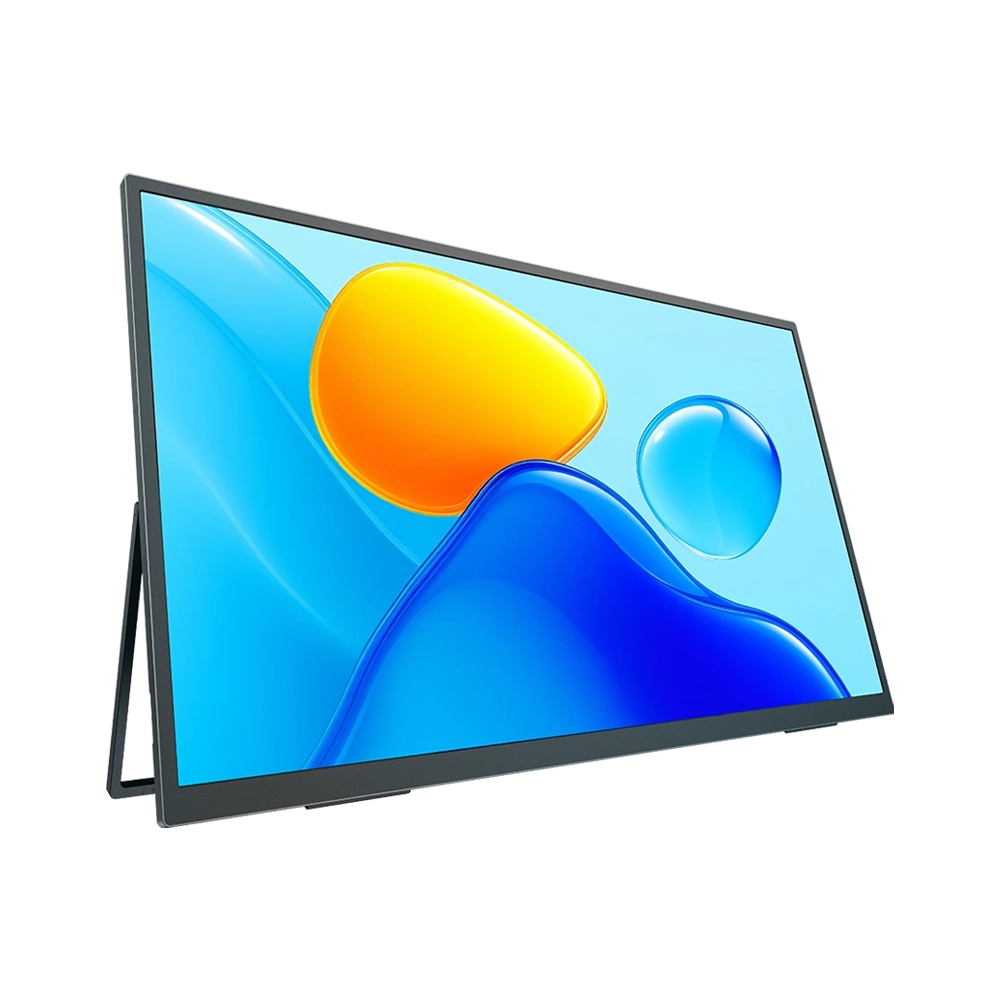
Why Portable Monitors Can Look Blurry
Portable monitors are designed for ease-of-use, but what happens when this device comes at the cost of display clarity? Usually, this happens when the portable display is not set up properly. Here are some reasons why portable monitors look blurry:
- Lower native resolution or pixel density
- Power and signal limitations (USB-C usage)
- Default scaling mismatches
- Panel quality and color calibration.
How To Fix A Blurry External Monitor
Blurry external displays can be fixed with a few adjustment settings. Here are some things to look out for:
- Ensure the visual system runs at the recommended resolution
- Use appropriate scaling settings for your display size on external monitor
- Use high-quality cables
- Switch between display modes (Extend/ Duplicate) to select the most suitable display settings.
Common Causes & Solutions for Portable Monitor Blurriness
1. Resolution & Refresh Rate Issues
Issue: Unable to achieve optimal resolution, image appears blurry
Solutions:
- Enter monitor menu and press RESET to restore factory settings
- Turn off HDR on both computer and monitor
- Use a secondary resolution if native resolution is not achievable (e.g., 2560×1600 instead of 2880×1800)
Issue: Text becomes blurry when set to non-native resolution (e.g., 4K screen set to 1080P)
Cause: Non-native resolution results in reduced clarity
Solutions:
- Use the native resolution whenever possible
- Note that 1080P cannot match the clarity of 4K
Issue: Blurry text when connected to MacBook
Solutions:
- Select 2560×1440 or 1280×720 HiDPI resolution
- BetterDisplay app can only modify resolution, cannot improve the monitor's native resolution
Issue: MacBook Air M1 only achieves 30Hz refresh rate with blurry text
Cause: Device limited to 2560×3200 @ 30Hz in LINK (daisy-chain) mode
Solutions:
- Try selecting 1280×1600 HiDPI resolution
- Use a device with higher bandwidth support
2. Refresh Rate & Bandwidth Issues
Issue: Display is clear at 100Hz but blurry at 120Hz
Causes:
- Insufficient device bandwidth (requires 25Gbps or higher) - automatically sacrifices color gamut and color depth to increase refresh rate
- Cable quality issues
Solutions:
- Use a computer with Thunderbolt 3 or Thunderbolt 4 interface with dedicated graphics card
- Try using mini HDMI cable instead of Type-C cable
- Use high-quality 8K certified cables
Additional Notes:
- Monitor uses 8bit+FRC technology, which differs from native 10bit
- Enabling HDR will slightly reduce pixel clarity - this is normal
3. Dual Screen / Daisy-Chain Mode Issues
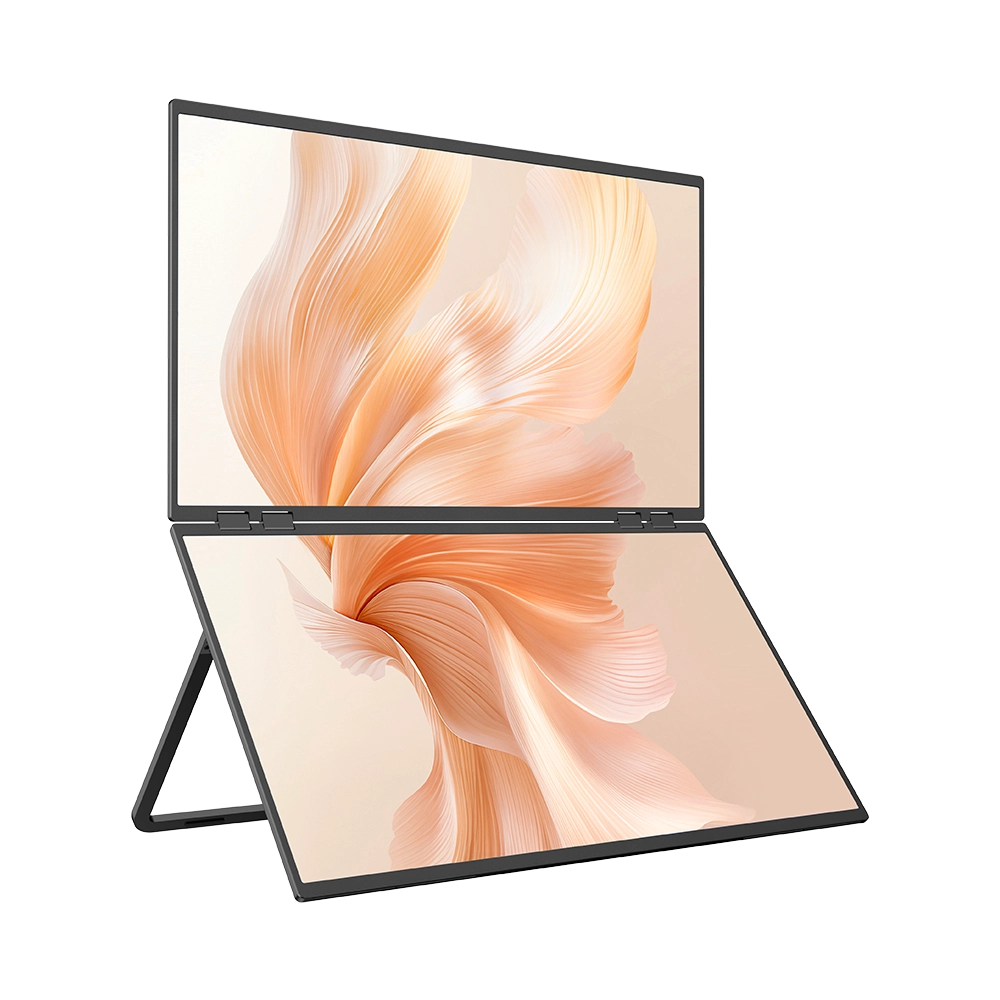
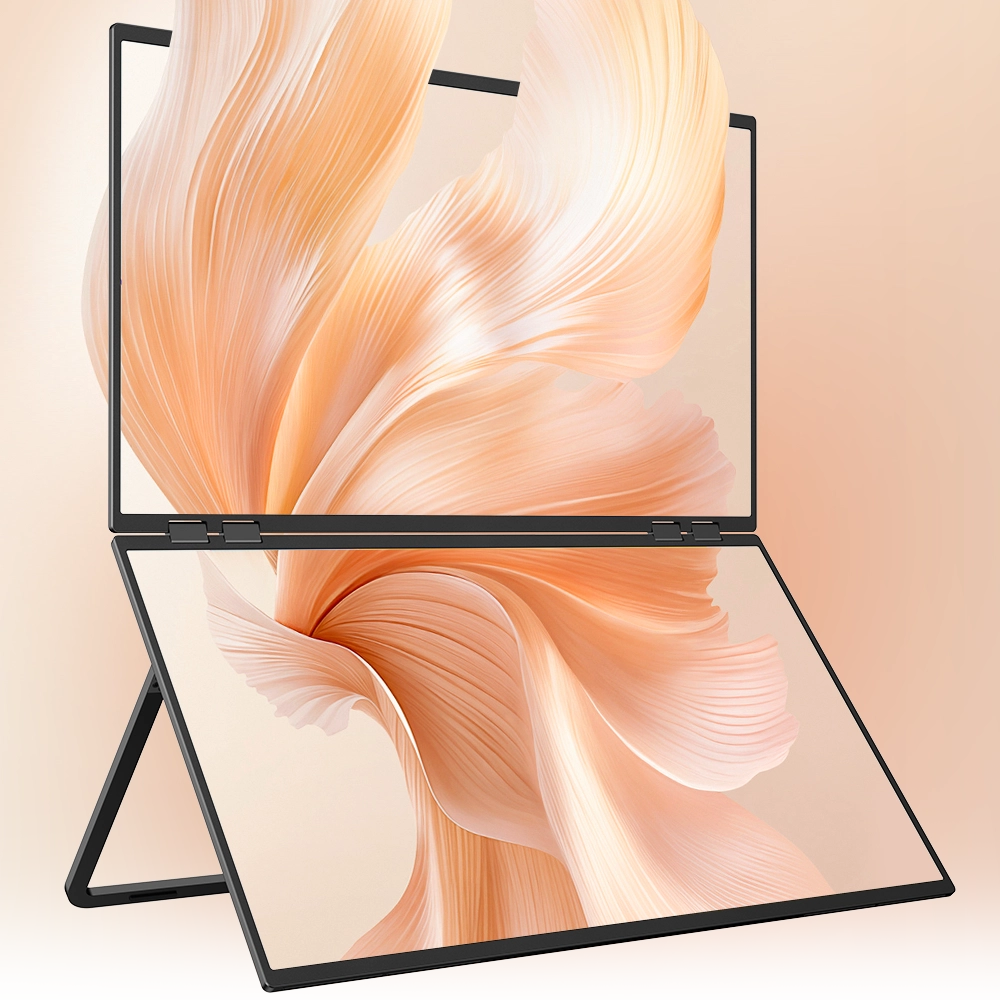
Issue: Lower screen of dual-screen monitor is blurrier than upper screen
Cause: Industry technical limitation - one screen of dual-screen monitors will always have slightly lower clarity
Solutions:
- This is normal and cannot be optimized
- Some models cannot achieve A+B+C display mode with MacBook Air
Issue: Display issues in LINK (daisy-chain) mode
Solutions:
- Use extended mode or connect monitors separately
- Enter monitor menu and press "reset"
- Set refresh rate to 60Hz in computer display settings
Issue: Using two single monitors as dual screens
Solutions:
- Can be achieved with two signal outputs from device (one full-featured Type-C + one HDMI)
- If only one HDMI port, use a 1-in-2-out splitter
- Left-side usage will not cause blur
4. Gravity Sensor & Display Orientation Issues
Issue: Text becomes blurry when switching monitor from right side to left side
Cause: Gravity sensor causes display abnormality
Solutions:
- Enter monitor menu and turn off gravity sensor
- Set horizontal flip or 180-degree rotation in computer display settings
- If gravity sensor switch cannot be found, can only use on right side
5. HDR & Color Issues
Issue: Clarity decreases after enabling HDR
Causes:
- HDR makes colors appear lighter, designed to balance dark and bright areas
- Monitor uses 8bit+FRC, not native 10bit
Solutions:
- Turn off HDR for better clarity
- This is normal behavior
Issue: Lower screen has warmer color temperature and appears darker
Solutions:
- This is normal - lower screen color temperature is slightly warmer
- One screen of dual-screen setup will have slightly lower clarity
6. Device Compatibility Issues
Issue: Samsung phone connected - media image blurry, resolution not supported
Cause: Samsung DeX mode is phone system related
Solutions:
- Check if phone system is up to date
- DeX mode is phone-dependent, not a monitor issue
Issue: Monitor suddenly goes black, colors blurry, missing color channel
Solutions:
- Enter monitor menu and reset the display
- If problem persists, need to return for screen replacement
Issue: Video display appears blurry
Solutions:
- Check if video source has issues
- Try a different playback platform or open other files to test
The Fastest Solution To a Blurry Portable Monitor
General Troubleshooting Steps for Portable Monitors
When encountering display blur issues, follow these steps in order:
- Reset Monitor: Enter monitor menu and press RESET
- Check Resolution: Confirm using native/recommended resolution
- Adjust Refresh Rate: Try lowering refresh rate (e.g., from 120Hz to 100Hz)
- Turn Off HDR: Disable HDR on both computer and monitor
- Check Cables: Replace with high-quality cables, or try different interfaces (Type-C vs HDMI)
- Update Drivers: Update computer graphics driver
- Check Device Bandwidth: Confirm device interface bandwidth is sufficient (Thunderbolt 3/4 is optimal)
- Test Other Devices: Connect with other devices to rule out device-specific issues
Key Parameters Explained
| Parameter | Description |
|---|---|
| 8-bit + FRC | Frame Rate Control technology used to simulate a 10-bit color effect (not native 10-bit) |
| 120Hz Bandwidth | Requires a Type-C connection with at least 25Gbps bandwidth |
| HiDPI | High pixel density mode that improves text clarity |
| HDR | May increase brightness but slightly reduce clarity |
| LINK Mode | Daisy-chain dual-screen mode that may limit refresh rate |
Quick Reference Card
If blur occurs after connection:
→ Reset monitor → Check resolution → Try different cable
If blur occurs at high refresh rate:
→ Lower to 100Hz → Check device bandwidth → Use Thunderbolt 3/4 device
If dual-screen lower panel is blurry:
→ This is normal, industry technical limitation
If left-side usage causes blur:
→ Turn off gravity sensor in menu → Set orientation in computer settings
If HDR causes blur:
→ Turn off HDR for better clarity
Conclusion
From incorrect resolution settings to scaling and compatibility challenges, blurry screen issues can arise from different factors. No matter the condition, it always originates from system configuration rather than a faulty screen. By understanding the implications of each factor, users can easily pinpoint the issues and offer adequate solutions.






Leave a comment