

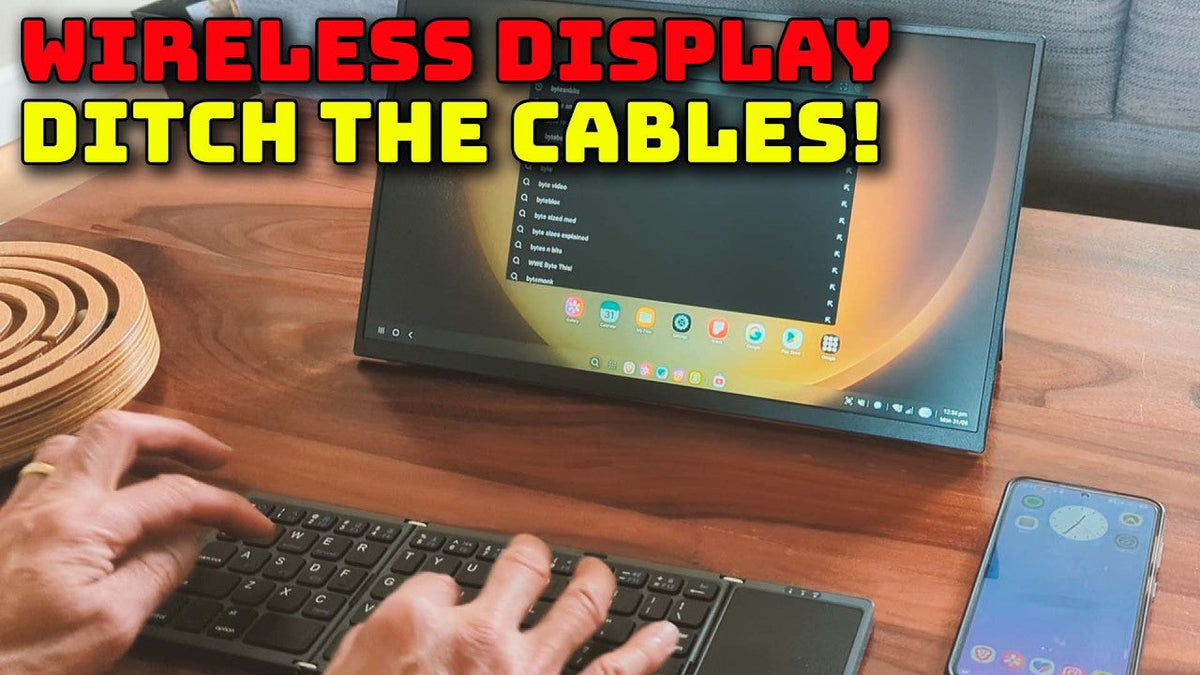
What if you could instantly turn your smartphone into a fully working laptop, wherever and whenever you wanted. No wires, no hassle. Well, with this portable display, you can. Let's have a look. Hi and welcome to Bytes and Bits.
Turning Your Smartphone Into a Laptop

Wireless Portable Display
This UPERFECT BE156EF wireless portable display is the ideal way to instantly turn your mobile device into a fully functional laptop. It's compatible with Miracast on Windows and Android and Air cast on Apple devices, as well as USB-C display port connections and of course standard HDMI inputs. All you need to do is to turn on the display. Pair the screen with your phone, and it will then drop into desktop mode, giving you a 15-inch full HD screen computer. And with the supplied foldable keyboard and trackpad, you've got everything you need to get started. So let's take a closer look at this package.
What's Included in the Package

So, before we start, just to let you know that UPERFECT did send me this display for review, but as always, I'll be giving you my honest opinions on this device. So, the screen itself comes packaged with everything you need to get up and running. So, in the box you get the screen. You also get a 3-amp power supply with a USB-C output for charging, a whole bunch of cables so you can connect to whatever device you have, and a great little foldable keyboard and trackpad to complete your mobile setup.
Display Design and Quality

15.6 Inch Full HD IPS Display
So, looking at the screen itself, it's a 15.6-inch 10080p full HD IPS display. So, the surface has a matte finish, so you're not going to be plagued by reflections when you try to use it out and about, and it has a useful kick stand at the back that folds away into the body of the screen.
Built-In Kickstand

But this kickstand also protects the ports and buttons whilst the device is packed away. It also allows you to stand the screen in either landscape or portrait mode, and the unit has the ability to detect its orientation automatically, although not all devices that connect to it will be able to sense this.
Display Quality and Speakers

So, display quality is, is actually very good, with great visibility and clarity, and it does come with built-in speakers, so you can use it to play games and of course watch videos.
Connectivity and Ports

USB-C and Mini HDMI Connections
So connection wise then, so round the side of the display, you'll find there are 3 input ports. So 2 are USB-C connections, and 1 is a mini HDMI connector. Now UPERFECT helpfully supply you with a USB-C to USB-C data cable, as well as a full-sized HDMI to mini HDMI lead, so you can plug it into pretty much any device straight away. Now again, these allow you to use the screen with non-wireless devices.
Display Settings and Headphone Connection

So on the other side, you've got the power and the on-screen menu buttons, that let you select the input source, if it doesn't get automatically connected, and of course then alter the actual display settings. And again, there is a full set of settings that you can play about with for this screen. Also on this side, you have a standard 3.5-millimeter jack plug, which allows you to connect up some headphones, so if you do want to, use those to keep the noise levels down around you, then you just simply plug in here and off you go, and of course that's coming over either the display, Miracast stuff or for your HDMI connection.
Wireless Features and Battery

Built-In Battery
Now as I mentioned earlier, one of the best features of this display is that it is completely wireless. It contains its own battery, which you can charge with the included power supply, and this will give you around 4 hours of playtime.
Wireless Compatibility

It will of course connect wirelessly to most devices, and it uses Windows Miracast, MacOS or iOS Airplay, and Android wireless projection, which includes the Samsung DEX system, Motorola Motorola Ready 4, the OnePlus screen monitoring, LG Screen Plus, Huawei easy projection, and Google Cast, formats.
Wireless Connection Performance

So I found that the wireless connection does work very well, it doesn't seem to have very much lag, and it does give very clear quality. you also of course then got a foldable keyboard, and that seems to be a very good quality device as well, it folds away nicely, and the keyboard itself has a good feel, nice sized keys, and a nice sized trackpad. So, all in all, I think this is a very good package, it's definitely got everything you need to connect to pretty much any device you can think of.
Using the Display
Turning Your Phone Into a Laptop

So as for using this display, well, as you've already seen, you can use the device to turn your phone into a laptop, but it's not just limited to that. So, so basically any device that can output to a screen can be attached to this display.
Extra Screen Space for Coding

So, so my main job is, is coding, so when I am away from my main PC I have to work on a laptop. Now I, I always need more desktop space when I'm on my laptop. So, this screen quickly lets me connect up to a whole 1080p's worth of extra screen space when I'm working.
Gaming With the Portable Display

Now then of course if you're a gamer, then this device will let you take your console anywhere you want. That that built-in battery is especially useful for handheld consoles, such as my Nintendo Switch here. So, what you need to do is to put your switch into a dock, connect up the HDMI lead, and, and in an instant then you've got a 15 inch gaming setup.
Test the Wireless Connections

Samsung Dex Connection
So, if you do want to use the wireless connection, it's actually very easy to pair your devices. So, on my Samsung phone, I just need to turn on the display, so if there are no cables plugged in, it will automatically start in wireless mode and prompt you to connect the device with some on-screen instructions. On my phone, I just go into settings and devices and select the Samsung DEX option, and this, and this should then find the display and show a matching code that matches with the number on the screen itself. So just select that and after about 15 seconds or so, the devices should connect, and you've got a working laptop.
Windows Laptop Connection

So similarly on my Windows laptop, I just press the Windows + K button, and this brings up the casting options. So that should scan and automatically detect the UPERFECT display that's waiting. So, all I need to do is just select that on my windows laptop and again wait for the connection to complete.
Mirroring and Extending the Screen

And now I've got a second screen that I can either use to mirror, my laptop's main screen, so say I wanted to have this in front of some clients or something like that, I could just simply have two screens and put one in front of them, or of course, I can extend my screen space and give myself more desktop area.
Portrait Mode

So, for, for my laptop, it wasn't able to detect the screen rotation function, on, on the display itself, but of course, once it's set up and working, I can just simply right click on the mobile display and then flip the screen in software to give me a very coding friendly portrait desktop.
Final Thoughts

So, that pretty much is the UPERFECT wireless monitor. So, if, if you do need a fully wireless portable screen, I'd say that this UPERFECT display is a great choice. I'm actually really impressed with it, and I did actually take it on holiday with me recently, where it was incredibly useful to have that extra space for my work without having to cart around and connect up bulky screens and with power supplies and all the cabling that goes with it. I could just simply take this screen out of my bag, pop it on the desk beside me, and wirelessly connect my laptop to it, and off I went.
Share:
UPERFECT GR16HQ OLED Gaming Portable Monitor Reviewed by Tech Enthusiast
UPERFECT BE185CF Dual Screen Touch Monitor Reviewed by Retrotastic Gamer